Somos needs your phone on the same Wi-Fi as your speakers. On Android 17 or later it also asks for the Nearby devices permission, which is how it finds and controls them. See Android Permissions.
Download and set up
1
Join the Google group
Somos InControl for Android is in a closed test on Google Play. Open groups.google.com/g/somos-android-testers and join the group with the same Google account the Play Store on your phone uses.
2
Become a tester
Open play.google.com/apps/testing/com.cmoore.somosincontrol and tap Become a tester. Give it a few minutes before you install from Play.
3
Install and open
Install Somos InControl from Google Play and open it. If you already have it from Play, it updates on its own.
4
Lock Screen controls
On Android 13 or later, Somos asks whether to allow notifications for speaker controls. Choose Continue to answer Android’s prompt, or Not now. Finding your speakers works either way. See Lock Screen and Widgets.
5
Find your speakers
Connect the phone to your speakers’ Wi-Fi. Somos searches automatically and opens your first room. On Android 17 or later, allow Nearby devices when Android asks. Somos doesn’t request Location or Bluetooth.
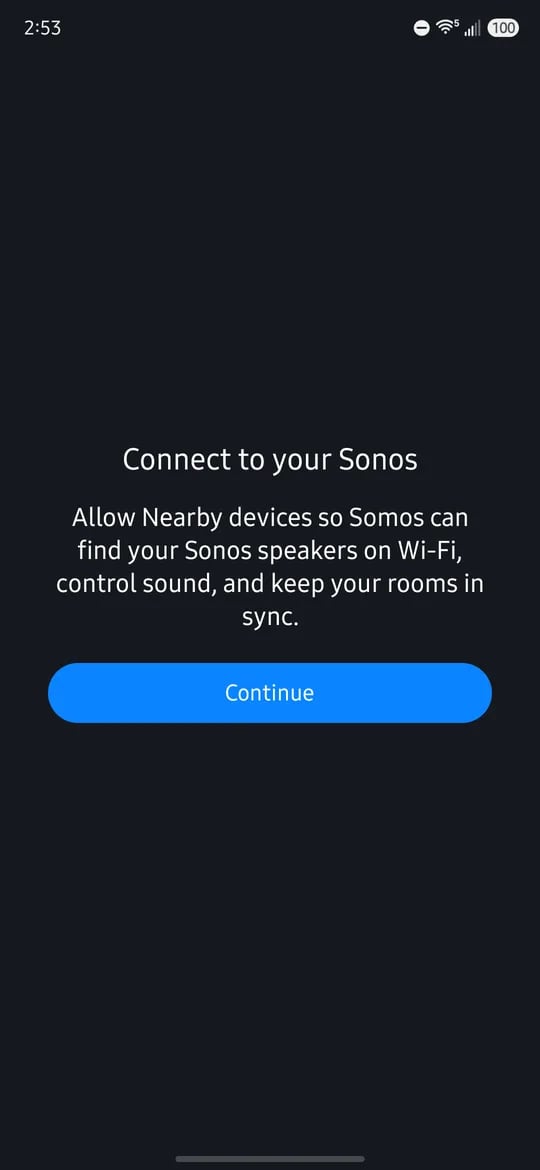
The Connect to your Sonos page, shown before Android's Nearby devices prompt on Android 17 or later. Test build.
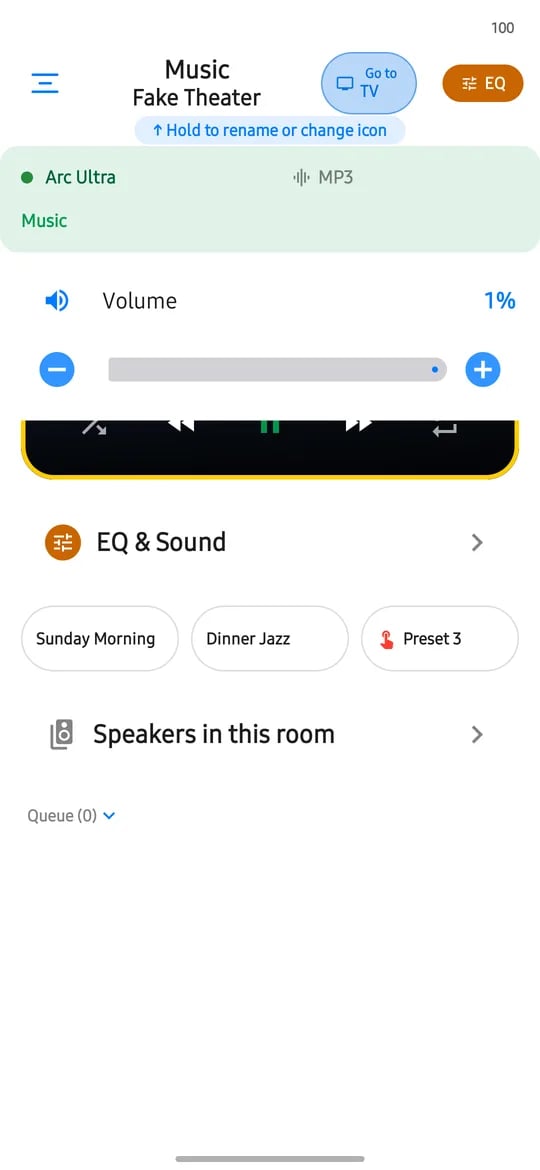
A room page on Android: the room and its audio format, volume, and the three sound presets under EQ & Sound. The rooms in these pictures are test rooms.
If Somos can’t find your speakers
Check the same four things as on iPhone, and then tap Try Again:- UPnP on in the Sonos® app. Sonos app › Account › Privacy & Security › UPnP › on.
- VPN allows your home network. If the Sonos app works with your VPN on, Somos will too.
- Phone on the same Wi-Fi as the speakers. Not cellular.
- Not a guest or IoT network. Those keep devices from seeing each other.