Somos InControl discovers every Sonos® room on your Wi-Fi automatically each time the app launches. You don’t need to add or configure rooms — they appear as soon as the app finds them, usually within a few seconds.
Anatomy of a room page
From top to bottom:- Room name — press and hold it to rename the room. The new name applies everywhere, including the Sonos® app.
- Status line — connection state and the model (“Era 100 · Stereo Pair”, “Move 2 · 87% ⚡” for a portable with its battery level). The group button in the top-right opens Group Rooms; on a system with only one room there is nothing to group with, so the button isn’t shown.
- Source row (soundbars) — the TV / Music source and the audio-format badge; while music plays, the format of the track (Lossless, MP3, AAC and so on, when the music reports one) shows there instead — in every room, not just soundbars — and scrolls only if it doesn’t fit. On other rooms, the Music button opens the music page. On a soundbar, the Go to Music button in the title bar opens the music page. A music speaker in a group a soundbar leads shows the soundbar’s TV row instead. While a sleep timer runs, a moon and the minutes left (☾ 23m) sit on this row.
- Volume card — pinned as you scroll. See Volume. When the room is grouped, a line under it names the group (Office grouped with Era Right S) above the Group slider.
- Sound Presets — three TV presets. See Sound Presets.
- EQ card — sliders and toggles. See EQ & Trueplay.
- Room diagram — what’s bonded to the room; press and hold to set up speakers. See Room Diagram.
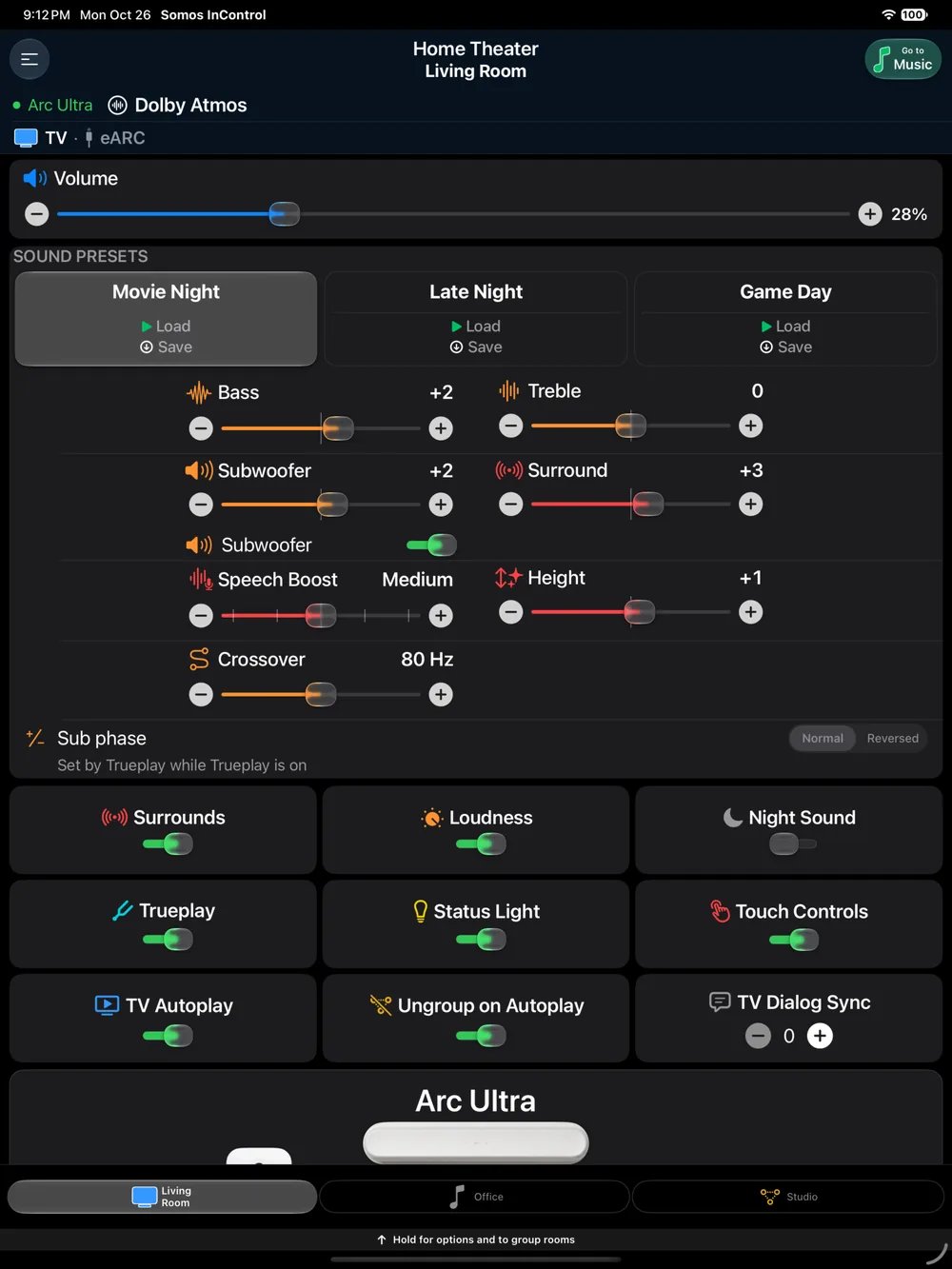
On iPad the same room page shows more at once: the room bar, volume, presets, sound sliders and switches follow the same order as on iPhone.
TV rooms and music rooms
Only a room built around a soundbar — Arc, Arc Ultra, Beam, Beam Ultra, Ray, Playbar or Playbase — is a TV room, with the TV / Music source row, the three TV presets and the full EQ card on its page. Everything else is a music room: a single speaker, a stereo pair (two Eras, Ones or Fives), an Amp, a portable — with or without a Sub bonded to it. A Sub on its own never turns a room into a TV room. A music room’s page is shorter on purpose. It keeps volume, Balance on a stereo pair, the Sub’s on/off switch, crossover and phase when a Sub is bonded, the Trueplay, Status Light and Touch Controls switches, and the room diagram (press and hold it to make or separate a pair). The room’s sound — its three presets, bass, treble, Sub level and Loudness — is on the music page, because music is all that room plays. Tap Music at the top of the page to get there.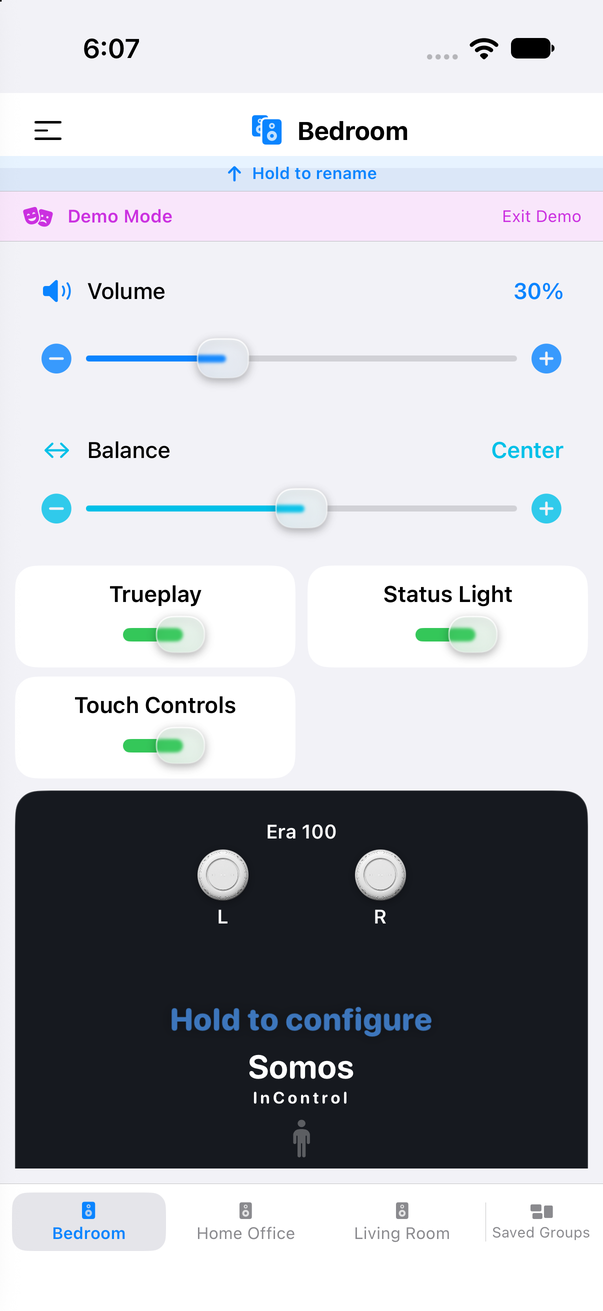
A stereo pair's room page: volume, Balance, the three switches and the diagram. Its presets and EQ are on the music page.
What each room type supports
All rooms
- Volume, − / +, mute
- Bass, treble, Loudness
- Three music presets on the music page
- Trueplay, Status Light, Touch Controls
- Music page (music services, favorites, queue)
- Grouping, rename, room diagram
Soundbar rooms
Everything above, plus:
- Three TV presets and the EQ card on the room page
- TV / Music source, two pages (Home Theater and Music) and the audio-format badge
- Night Sound and Speech Boost (a level slider on the Arc Ultra)
- Height level on height-capable bars
- Surround level and Surrounds on/off (with surrounds bonded)
- Music Level and the Surround Music tile (Ambient / Full) on the music page
- Group Audio Delay (while grouped)
- Home Theater Setup from the diagram
Stereo pairs
Everything in “All rooms”, plus a Balance slider on the room page, and the option to separate the pair from the diagram’s setup sheet. A pair is a music room: its presets and EQ are on the music page.
Rooms with a Sub
Any room with a bonded Sub — soundbar, stereo pair or single — adds the Subwoofer level, an on/off switch, Sub phase (Normal / Reversed), and the Crossover slider wherever the speaker reports one. A Sub does not make a room a TV room.
Portable speakers
Move, Move 2 and Roam appear as normal rooms with their battery level (and a ⚡ while charging) in the status line. A portable switched to Bluetooth disappears from the app — and from the Sonos® app — until Bluetooth is turned off again.
Locked rooms
Without Whole Home, only your free room is open. Any other room shows a lock, and its page says Your free room is and the free room’s name, with a Go to button.
Rooms that need attention
A speaker running older firmware than the rest of the household shows Needs a firmware update and its page has no controls until the Sonos® app updates it. A Sub that isn’t bonded to anything gets a page explaining where to bond it.
Switching rooms
- Swipe left or right on a room page to move between rooms.
- Bottom bar — your rooms sit here as tabs, in your room order. Tap to switch instantly, or swipe the tabs left or right for the next or previous room (it goes round, like the wheel); press and hold a tab for Reorder or Rename — a Hold to reorder or rename hint sits under the tabs whenever there are two or more. Each tab carries a symbol for what the room is (a TV for a soundbar room, a note for a speaker-only room, both for a live group), lit while it plays and gray when idle, and your saved groups sit next to the rooms as bookmark tabs, gray when idle and gold while playing. Hold a tab or a wheel row to group, ungroup or save. See Favorite Rooms.
- Menu — tap the menu button in the top-left, then See all under Rooms to open every room in a pop-up. Tap a room to switch to it. You can also rename a room by pressing and holding its name on the room page.
- Apple Watch — the Watch app lists the same rooms in the same order.
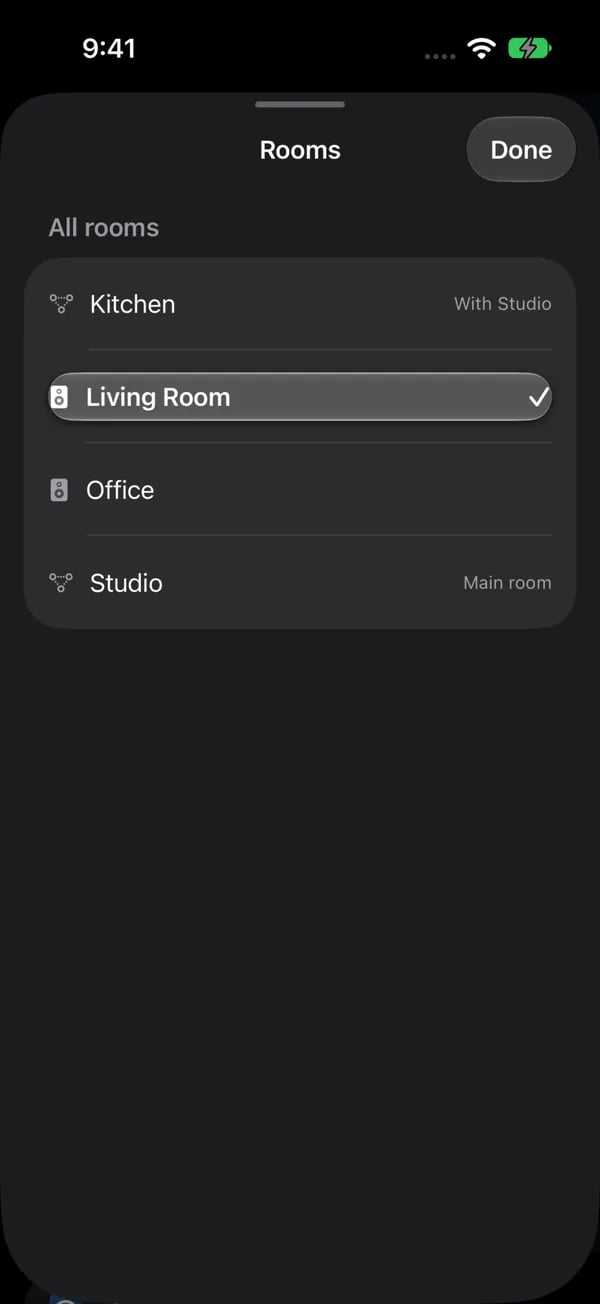
The menu's room list shows every room and marks grouped members (Kitchen, with Studio) and the main room. Choose a room to open its page.