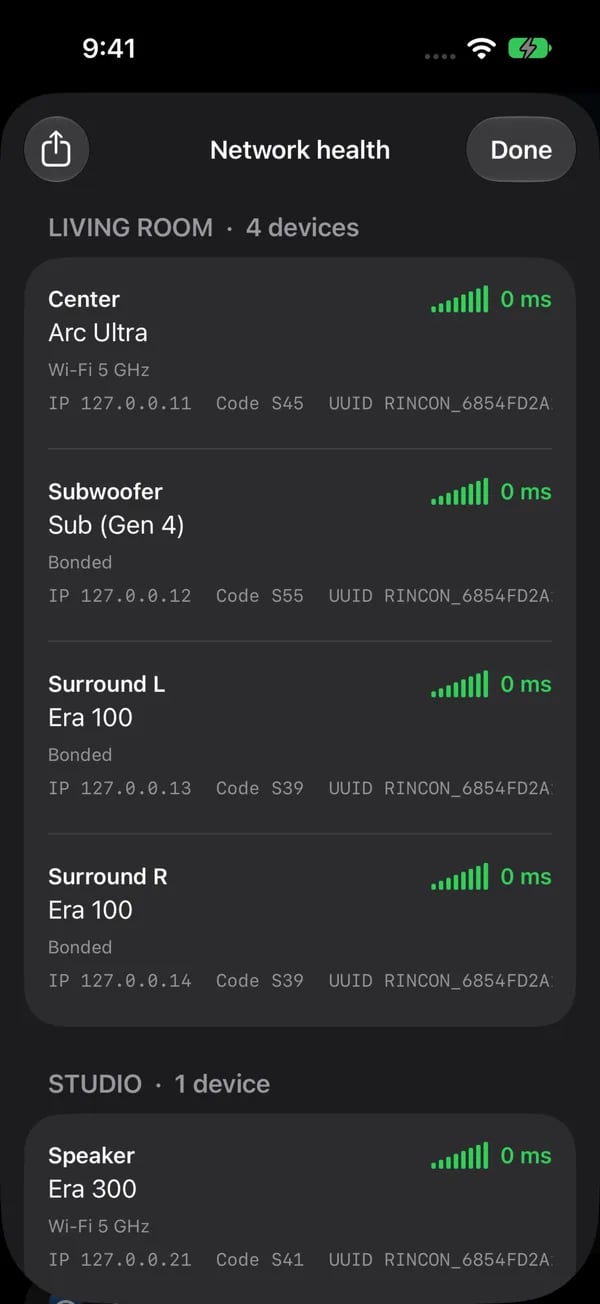
When a room is slow to respond or drops out, Network health shows which speaker is the weak link. It sits in the menu under Advanced Settings, beside Submit diagnostics. (Before build 40.0.5 it had a box of its own in the menu.)

What the page shows

The check runs when the page opens. It tries the available speakers together to find the system, so one unreachable speaker does not hold up every other attempt. You get one row per speaker:
  • The room and the model.
  • How it is connected. Wired, or Wi-Fi with the band when the speaker reports it: 2.4 GHz, 5 GHz or 6 GHz.
  • How fast it answers, in milliseconds.
  • A verdict. Good, Check or Problem.
A speaker that answers in under 100 ms is fast. A slow answer, an unknown connection or a speaker missed by the last scan reads Check. Problem means the speaker did not answer. An answer slower than 400 ms still reads Check, with a note that it is very slow. Under a row that needs attention, a short line says what to try, such as moving the speaker closer to the router or to 5 GHz, or checking the router or mesh point nearest it. A speaker on 2.4 GHz that is still answering fast keeps its green verdict, with a note. Under the rows, a summary in plain words says how many speakers answer fast and what to look at for the rest.
The Network health page on iPhone: Living Room with 4 devices, Center Arc Ultra, Subwoofer Sub (Gen 4), Surround L Era 100 and Surround R Era 100, each with signal bars, 0 ms, Wi-Fi 5 GHz or Bonded, and Studio with one Era 300.

Network health starts with a plain-language summary; Details lists each speaker with its role, how it is connected and how fast it answers. Bonded surrounds and Subs are shown under their home theater. (The values here come from the example household.)

Refresh and Share

  • Refresh checks again.
  • Share sends the result as text or as a PDF, through the iOS share sheet.
The check talks only to your speakers on your own Wi-Fi. Nothing is sent to Somos unless you share it yourself.
Still stuck? See Troubleshooting, or send the app’s log from Submit diagnostics (see Contact).