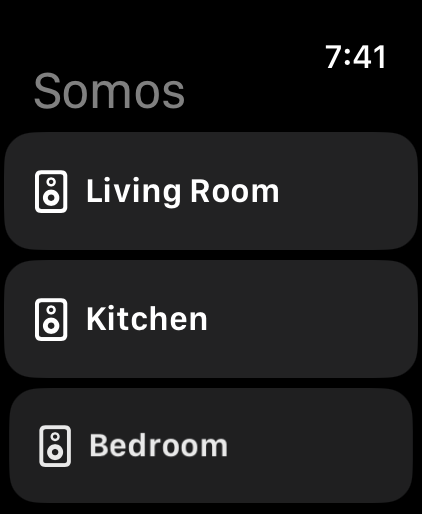
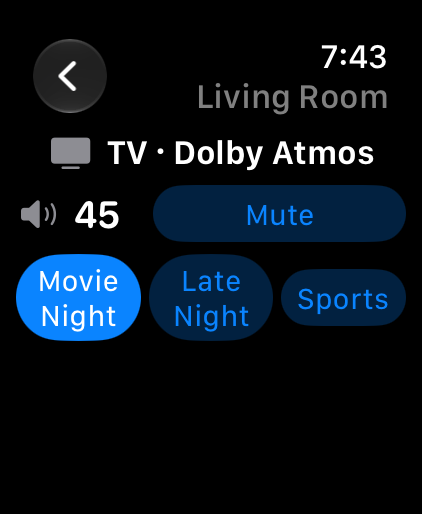
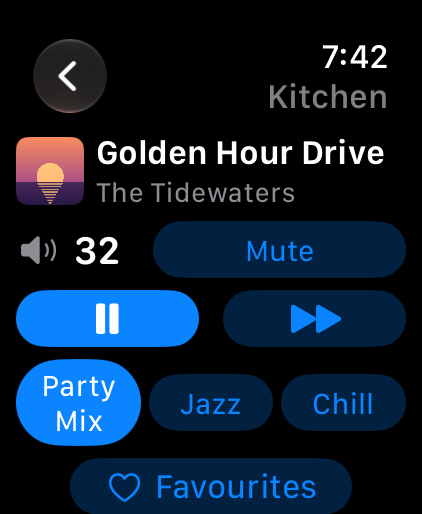
The Watch app on an Apple Watch Ultra: the rooms list, a TV room, and a music room.
How it works, step by step
1
Install from TestFlight
Install Somos InControl from TestFlight on your iPhone. The Watch app comes along with it.
2
Check the Watch app on your iPhone
If Somos does not appear on the Watch, open the Watch app on your iPhone, go to My Watch, and tap Install next to Somos.
3
Open Somos on the iPhone once
Your rooms are sent to the Watch the moment the iPhone app starts, in the same order as your bottom bar, together with each room’s saved presets. Until then the Watch says Open Somos on your iPhone to send your rooms here.
4
Rooms appear
The first screen lists your rooms. The Watch keeps the list, so it is there the next time even if the iPhone is out of reach. Tap a room to open it.
5
The room screen
A room is one screen, and what it shows depends on what the room is doing. A TV room — a soundbar on its TV input — shows TV and the audio format it is receiving (TV · Dolby Atmos (MAT), for example; just TV while there is no signal). A music room shows the album art, the title and the artist. The Watch reads all of it straight from the speaker over your home Wi-Fi.
6
Turn the Crown for volume, tap Mute
Turn the Digital Crown to change the room’s volume; the number on screen follows. When the room is grouped, the number is the group’s volume, and the Crown turns the whole group up or down together, each room keeping its place in the mix. The Crown does nothing until the room’s own level has been read — the number shows a dash until then — so a turn can never send another room’s level to this one. Mute sits beside the number: tap it to mute the room, and it reads Unmute, lit, while the room is muted.
7
Tap a preset
Under the volume are the room’s three sound presets, by name: the three TV presets on a TV room, the three music presets on a music room. The loaded one is lit. Tap another and the room takes on everything that preset captured — the EQ, and volume, Loudness, Night Sound or Speech Boost when you ticked them — and the same preset lights up on the iPhone’s room page and on the Lock Screen card. A room with no saved presets says Save presets in Somos on your iPhone.
8
Previous, play, pause, next (music rooms)
On a music room, Previous goes back a track, the Play/Pause button toggles playback and Next skips the track. What you do here shows up in the iPhone app’s room and music pages, and the other way round. A TV room has no playback buttons — the TV input would ignore them.
9
Favourites (music rooms)
Tap Favourites for your Sonos® favorites — the list the Sonos® app keeps. Tap one to play it on the room. The list arrives once the iPhone’s music page has loaded it; until then it reads No favourites yet. Open Music in Somos on your iPhone.
Only favorites that can be played directly are listed. Sonos® Radio shortcuts such as Discover Sonos Radio, Playlists, Sonos Presents and Trending Now are browse folders rather than something to play, so they are left out — if those are the only favorites you have, the Watch list stays empty.
TV room or music room?
The Watch decides the same way the iPhone app does: by what the speaker is really doing. A soundbar playing its TV input — or sitting idle on it, TV off — is a TV room and shows the TV presets, Mute and the format, nothing else. Anything else is a music room, with playback, the music presets and favorites. Switch the soundbar to music on the iPhone and the Watch screen follows within a few seconds.On your watch face
Somos has complications for round, corner and wide slots: the Somos logo, Room, Now Playing, Volume, EQ Bars, EQ LEDs, Sleep Timer, Favourites, Presets, Play/Pause and Next Room. Each tap lands on its own screen: an EQ complication opens the room’s EQ screen, Sleep Timer opens the timer choices, Favourites opens your favourites, and Presets loads the room’s next preset. The quickest start is the ready-made face: on your iPhone, open the menu, tap Apple Watch, then Add Infograph face. See Watch Face for every complication and how to add it.The EQ and sleep timer screens
- EQ — opened from an EQ complication. It shows the loaded preset’s name, its EQ as bars and its values in words, with the room’s preset buttons underneath to load another. With no preset loaded it says No preset loaded. Pick one below.
- Sleep timer — opened from the Sleep Timer complication. Tap Off, 15 min, 30 min, 45 min, 60 min or 90 min. While a timer runs, the time left sits at the top. See Sleep Timer.
The Rooms button
A room opened from a complication is the top screen, so it has no back arrow. Press the Digital Crown to go straight back to your watch face, or tap Rooms in the top-left corner to see all your rooms.The card in the Smart Stack
When Live Activity is on and the iPhone is running iOS 18 or later, the Lock Screen card also appears in the Watch’s Smart Stack. It is a read-only glance, not a remote:- TV room — the room name, the volume, and the audio format.
- Music room — the room name, the volume, what is playing and, when the service reports one, the format.
What it cannot do
- Save or rename presets, or move a slider — presets are saved and named on the iPhone. The Watch loads them; it has no Bass, Treble, Night Sound or Speech Boost controls of its own.
- Browsing music — there is no browse or search. It plays what you already saved as a Sonos® favorite.
- Press a button from the watch face — a complication opens the Watch app first; Apple only lets widgets press buttons directly on iPhone and iPad.
- Grouping — rooms cannot be grouped or ungrouped from the Watch. On a grouped room, the Crown turns the group’s volume.
- Play, pause or skip on a TV room — the buttons are not shown there, because a TV input ignores them.
- Away from home Wi-Fi — the Watch needs to reach your speakers. If it cannot, the room screen says Can’t reach your Sonos. Join your home Wi-Fi or bring your iPhone. A room that has dropped off the system says so too — check it has power.