Speaker Setup: Home Theater Bonding and Stereo Pairs
Bond surrounds, separate front speakers and up to two Subs to a soundbar, or create and separate stereo pairs — all from inside Somos InControl.
Somos InControl can build your rooms as well as control them. Press and hold the room diagram on any room page to open the setup sheet for that room: Home Theater Setup on a soundbar, or the Stereo Pair sheet on a single speaker or an existing pair.
Set each speaker up in your Sonos® system first. Speakers already bonded elsewhere or in another group must be released before you assign them. You can choose an existing stereo pair for fronts or surrounds: Somos asks before separating it and uses both speakers together.
On the soundbar’s page, press and hold the room diagram.
2
Fill the slots you have
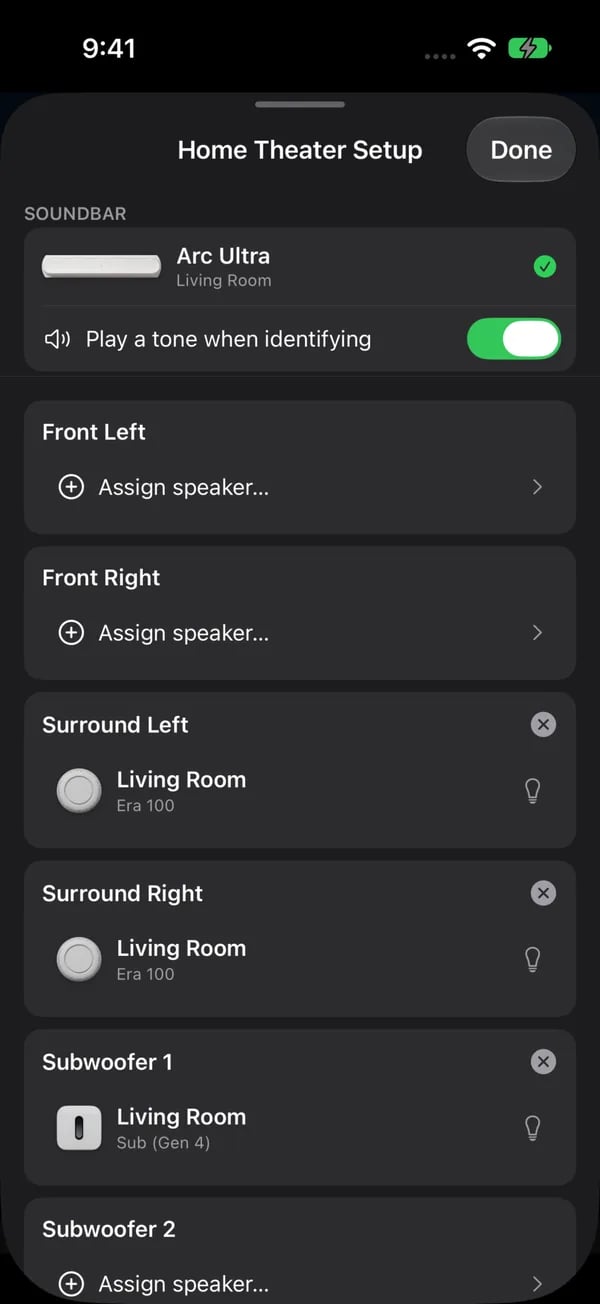
The sheet lists six slots: Front Left, Front Right, Surround Left, Surround Right, Subwoofer and Subwoofer 2. Tap a slot and choose from the available speakers or stereo pairs on your network. Sub slots only offer Subs. The picker explains compatibility on an Arc Ultra or Beam Ultra. Older models can appear too; the soundbar decides whether it accepts them. If you choose a stereo pair, confirm Split this stereo pair? before continuing. The flash button beside each candidate pulses that speaker’s status light so you can tell which is which; by default it also plays a short identify tone, which you can turn off with Play a tone when identifying.
3
Mind the front-speaker rule
Fronts must be assigned as a pair — both or neither — and the app checks this when you apply. Surrounds and Subs can be assigned on their own. Tapping × on an assignment clears just that slot.
4
Apply and wait
Tap Apply. When you add separate fronts, Somos temporarily removes the attached speakers, adds the fronts and confirms them, then adds Sub and confirms it, then adds surrounds and confirms them. Without fronts, setup starts with Sub, then surrounds. The progress sheet shows each stage. Leave it open until the room settles; fronts take longer than a single bond.
To take everything off the bar, tap Remove All Speakers, or remove speakers one at a time with × and then Apply. Released speakers reappear as their own rooms (Sonos® can take up to a minute), and the app offers to rename them as they come back.
Somos InControl lets you bond separate front left and right speakers to a soundbar — something the official Sonos® app doesn’t offer. Know the trade-off before you do: the soundbar becomes the centre channel and some of its own drivers go quiet, the fronts receive steered channels rather than their own Atmos feed, and Trueplay becomes unavailable while fronts are bonded. The app shows Before You Add Fronts before you continue. Don’t show this again remembers your choice.
A Beam Ultra accepts the front speakers but keeps its front and height channels, so the added fronts stay silent. The warning explains this before you continue. You can still choose Add Fronts. Its Don’t show this again choice is remembered separately from the general fronts warning, including after you close and reopen setup.
Separate fronts, surrounds, Subs and stereo pairs all work in your chosen room. Only the rooms beyond it, grouping and saved groups are part of Whole Home.
Home Theater Setup: the soundbar with Play a tone when identifying, then Front Left, Front Right, Surround Left, Surround Right, Subwoofer 1 and Subwoofer 2. Each filled position has its own remove button and a bulb to identify the speaker; Remove All Speakers is at the bottom.
If a stage fails or you cancel, Somos attempts to restore the previous layout and reports what happened. Check the room diagram afterwards. If recovery does not finish, send Submit diagnostics from Menu → Advanced Settings. Status Light recovery follows your latest choice, including after a pair is split or restored.
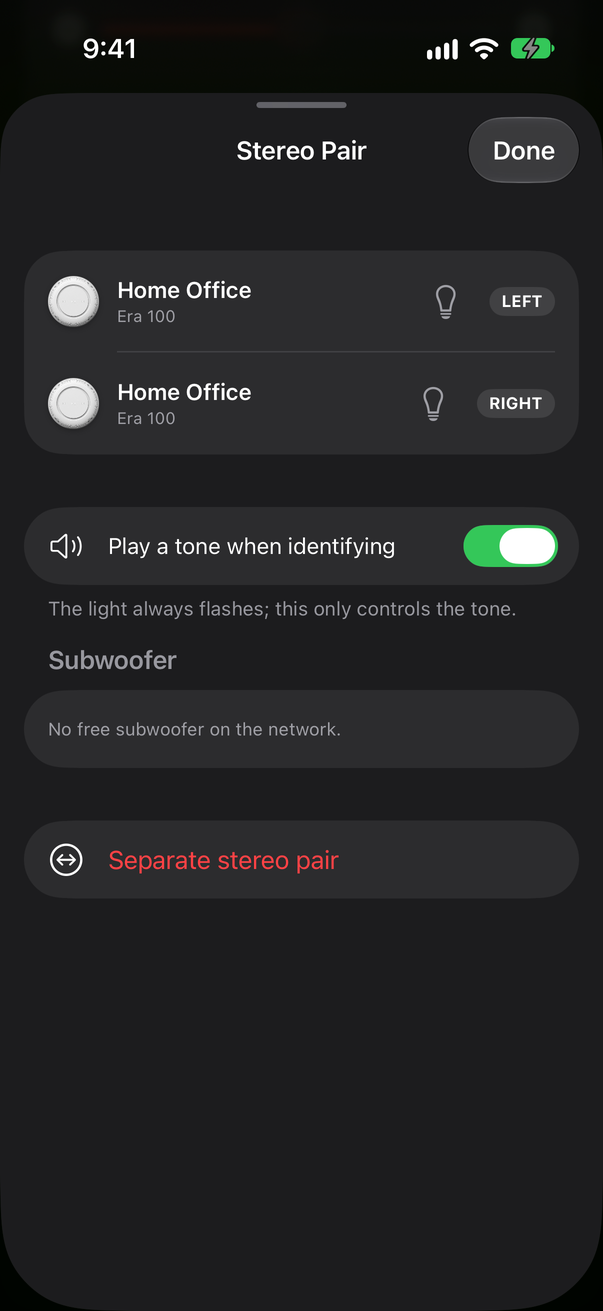
On a single speaker’s page, press and hold the diagram. The Stereo Pair page starts with the held speaker and lets you pick a partner from the standalone speakers of the same model on your network. The two appear as cards, marked LEFT and RIGHT — the top card is always the left channel; press and hold a card and drag to swap them. The bulb beside each card flashes that speaker’s light so you can tell which is which. Tap Apply to pair.
The Stereo Pair page: the top card is LEFT, the bottom card is RIGHT.
On a stereo pair’s page, press and hold the diagram and tap Separate stereo pair. Both speakers come back as their own rooms, and the app offers to rename them.
The hold does nothing on a single speaker that has no same-model partner available on the network — there’s nothing to pair it with.
Trueplay after bonding. Sonos® firmware blocks Trueplay on a bar with separate fronts. Run Trueplay in the official Sonos® app before adding fronts if you want it, and expect it to read Unavailable afterwards.
A released speaker doesn’t come back. Sonos® can hold a stale bond until the speaker restarts. Unplug it for 10 seconds and plug it back in.
The diagram didn’t update. Pull down on the room page; the app also resyncs every 30 seconds or so.
A pair with a Sub is still a music room. Bonding a Sub to a stereo pair or a single speaker adds the Sub’s level, switch, crossover and phase — it does not add TV controls or TV presets. Only a soundbar gets those. See TV rooms and music rooms.
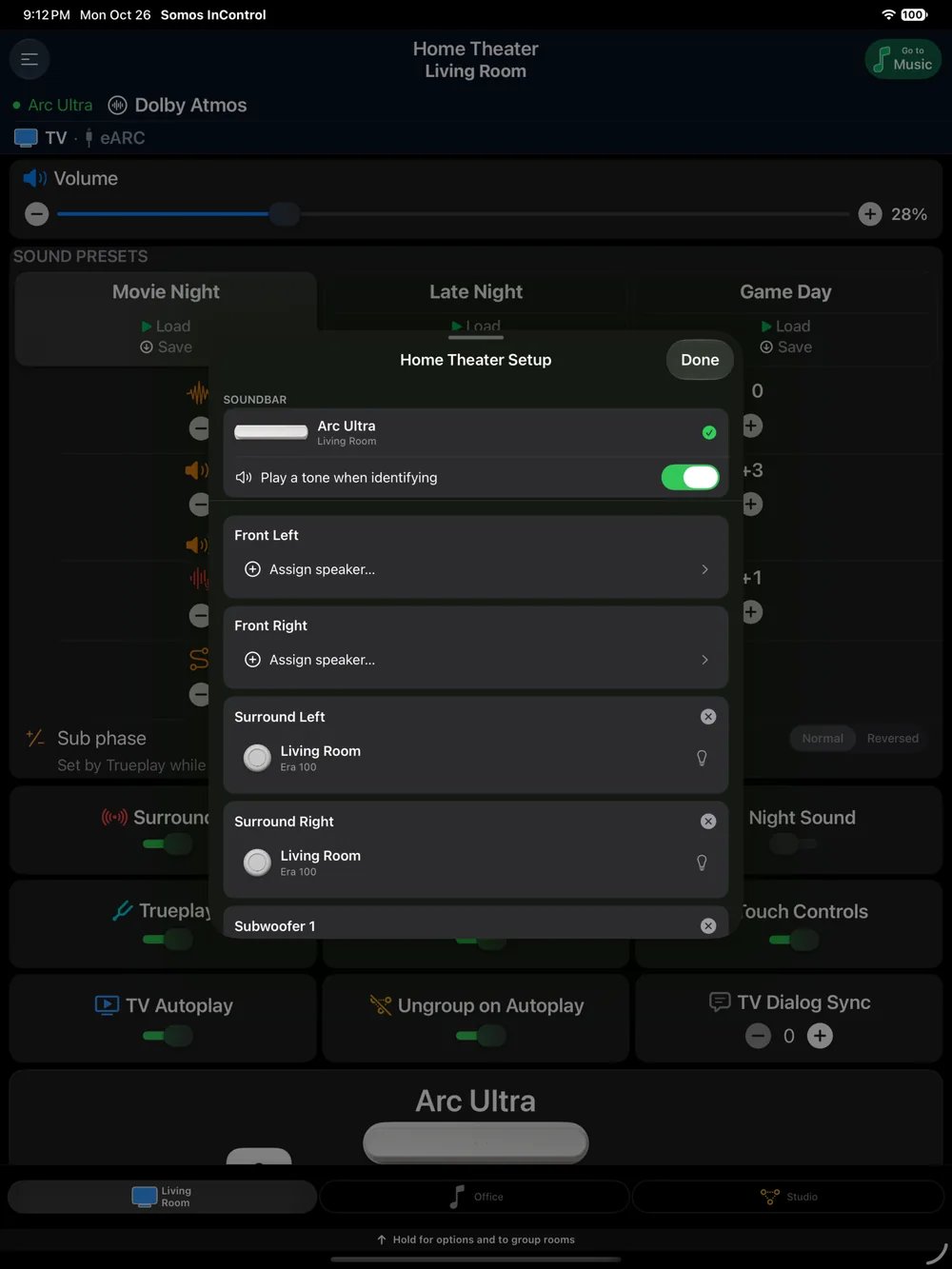
Home Theater Setup on iPad: the same positions and assignment controls on the larger screen. Identify a speaker before changing the position it fills.
⌘I
{"docsConfig":{"theme":"almond","$schema":"https://mintlify.com/docs.json","name":"Somos InControl","colors":{"primary":"#2563eb"},"favicon":"https://mintcdn.com/cjmo-app/gnwPTMmAB50kjo1Q/favicon.svg?fit=max\u0026auto=format\u0026n=gnwPTMmAB50kjo1Q\u0026q=85\u0026s=31dd0945943f09b45cc9458ed1e2c5b0","navbar":{"links":[{"href":"https://www.reddit.com/r/SomosInControl/","label":"Reddit"}],"primary":{"type":"button","label":"Download Beta","href":"/get-the-beta"}},"banner":{"content":"**Coming soon to the App Store.** Whole Home launch price, limited time. **Android testers wanted:** [join the beta](/get-the-beta).","dismissible":true},"styling":{"latex":false},"navigation":{"pages":[]}},"deployment":{"deploymentMetadataValue":{"subdomain":"cjmo-app","hasAudioNarration":false,"actualSubdomain":"cjmo-app","customDomains":["docs.somosincontrol.com"],"gitSource":{"type":"github","owner":"cjmo71","repo":"somos-docs","deployBranch":"main","contentDirectory":"","isPrivate":false,"mountPath":"","label":""},"chroma":{"latestBuiltDeploymentHistoryId":"6ae94592c4c0ca3115e9c23e","collectionId":"3f468e54-d853-4346-b827-3ed47032a503","liveDeploymentHistoryId":"6ae94592c4c0ca3115e9c23e","schemaVersion":"v3"},"feedback":{"thumbs":true},"entitlements":{"AI_CHAT":{"status":"DISABLED"}},"buildId":"6ae94592c4c0ca3115e9c23e","clientVersion":"0.0.4054","searchFilterCounts":[{"language":"default","tag":"User Guide","count":29},{"language":"default","tag":"Core Features","count":17},{"language":"default","tag":"Get Started","count":10},{"language":"default","tag":"Android","count":6},{"language":"default","tag":"Your Rooms","count":6},{"language":"default","tag":"Support","count":6},{"language":"default","tag":"Android Specifics","count":2},{"language":"default","tag":"Privacy \u0026 Legal","count":2},{"language":"default","tag":"Privacy","count":2}],"searchSettings":{"showContentSnippets":true}},"assistantConfig":{"enableAskAiButton":false,"enableStarterQuestions":false,"enableContextualStarterQuestions":false,"enableAskAiSearchBar":true,"deflection":{"enabled":true,"email":"cjmo.app@Gmail.com"}},"basePath":"","hasChatPermissions":false,"hasWebMcpPermissions":false,"toggles":[{"name":"kill-isr","enabled":true,"variant":{"name":"disabled","enabled":false,"feature_enabled":true},"impressionData":false},{"name":"agent-mintlify-slack","enabled":true,"variant":{"name":"disabled","enabled":false,"feature_enabled":true},"impressionData":false},{"name":"agent-integrations-settings","enabled":true,"variant":{"name":"disabled","enabled":false,"feature_enabled":true},"impressionData":false},{"name":"automations-pr-grouping","enabled":true,"variant":{"name":"disabled","enabled":false,"feature_enabled":true},"impressionData":false},{"name":"custom-prefix","enabled":true,"variant":{"name":"disabled","enabled":false,"feature_enabled":true},"impressionData":false},{"name":"analytics-v7","enabled":true,"variant":{"name":"disabled","enabled":false,"feature_enabled":true},"impressionData":false},{"name":"user-flows-analytics","enabled":true,"variant":{"name":"disabled","enabled":false,"feature_enabled":true},"impressionData":false},{"name":"no-publish-flow","enabled":true,"variant":{"name":"disabled","enabled":false,"feature_enabled":true},"impressionData":false},{"name":"workos-onboarding","enabled":true,"variant":{"name":"disabled","enabled":false,"feature_enabled":true},"impressionData":false},{"name":"llms-txt-v2","enabled":true,"variant":{"name":"disabled","enabled":false,"feature_enabled":true},"impressionData":false},{"name":"snapshot-serving-live","enabled":true,"variant":{"name":"disabled","enabled":false,"feature_enabled":true},"impressionData":false},{"name":"stripTemperatureMiddleware","enabled":true,"variant":{"name":"disabled","enabled":false,"feature_enabled":true},"impressionData":false},{"name":"support-platform-pylon-zendesk","enabled":true,"variant":{"name":"disabled","enabled":false,"feature_enabled":true},"impressionData":false},{"name":"snapshot-serving","enabled":true,"variant":{"name":"disabled","enabled":false,"feature_enabled":true},"impressionData":false},{"name":"instant-rollback","enabled":true,"variant":{"name":"disabled","enabled":false,"feature_enabled":true},"impressionData":false},{"name":"granular-notifications-server","enabled":true,"variant":{"name":"disabled","enabled":false,"feature_enabled":true},"impressionData":false},{"name":"granular-notifications","enabled":true,"variant":{"name":"disabled","enabled":false,"feature_enabled":true},"impressionData":false},{"name":"automations-fable","enabled":true,"variant":{"name":"disabled","enabled":false,"feature_enabled":true},"impressionData":false},{"name":"fixed-ai-action-pricing","enabled":true,"variant":{"name":"disabled","enabled":false,"feature_enabled":true},"impressionData":false},{"name":"automation-resolve-merge-conflict","enabled":true,"variant":{"name":"disabled","enabled":false,"feature_enabled":true},"impressionData":false},{"name":"scoped-publishing","enabled":true,"variant":{"name":"disabled","enabled":false,"feature_enabled":true},"impressionData":false},{"name":"mintql","enabled":true,"variant":{"name":"disabled","enabled":false,"feature_enabled":true},"impressionData":false},{"name":"page-level-analytics","enabled":true,"variant":{"name":"disabled","enabled":false,"feature_enabled":true},"impressionData":false},{"name":"editor-version-history-v2","enabled":true,"variant":{"name":"disabled","enabled":false,"feature_enabled":true},"impressionData":false},{"name":"billing-page-v2","enabled":true,"variant":{"name":"disabled","enabled":false,"feature_enabled":true},"impressionData":false},{"name":"full-page-search","enabled":true,"variant":{"name":"disabled","enabled":false,"feature_enabled":true},"impressionData":false},{"name":"workspace-projects","enabled":true,"variant":{"name":"disabled","enabled":false,"feature_enabled":true},"impressionData":false},{"name":"assistant-v5","enabled":true,"variant":{"name":"disabled","enabled":false,"feature_enabled":true},"impressionData":false},{"name":"byok-sep-25","enabled":true,"variant":{"name":"disabled","enabled":false,"feature_enabled":true},"impressionData":false},{"name":"fork-pr-previews","enabled":true,"variant":{"name":"disabled","enabled":false,"feature_enabled":true},"impressionData":false},{"name":"revalidation-jwt","enabled":true,"variant":{"name":"disabled","enabled":false,"feature_enabled":true},"impressionData":false},{"name":"vite-origin","enabled":true,"variant":{"name":"disabled","enabled":false,"feature_enabled":true},"impressionData":false},{"name":"billing-updated-9-15","enabled":true,"variant":{"name":"disabled","enabled":false,"feature_enabled":true},"impressionData":false},{"name":"workos-sso-scim","enabled":true,"variant":{"name":"disabled","enabled":false,"feature_enabled":true},"impressionData":false},{"name":"hobby-abuse-scan","enabled":true,"variant":{"name":"disabled","enabled":false,"feature_enabled":true},"impressionData":false},{"name":"dashboard-inbox","enabled":true,"variant":{"name":"disabled","enabled":false,"feature_enabled":true},"impressionData":false},{"name":"workos-signup","enabled":true,"variant":{"name":"disabled","enabled":false,"feature_enabled":true},"impressionData":false},{"name":"turbopuffer-dual-write","enabled":true,"variant":{"name":"disabled","enabled":false,"feature_enabled":true},"impressionData":false},{"name":"workos-enabled","enabled":true,"variant":{"name":"disabled","enabled":false,"feature_enabled":true},"impressionData":false},{"name":"approve-review-flow","enabled":true,"variant":{"name":"disabled","enabled":false,"feature_enabled":true},"impressionData":false},{"name":"sso-setup-deadline-banner","enabled":true,"variant":{"name":"disabled","enabled":false,"feature_enabled":true},"impressionData":false},{"name":"rbac-expansion","enabled":true,"variant":{"name":"disabled","enabled":false,"feature_enabled":true},"impressionData":false}],"privacy":{"consentBanner":{"enabled":true}},"googleFontsInlined":true},"customCss":[],"page":{"pagePath":"rooms/speaker-setup","slug":"/rooms/speaker-setup","pageMetadata":{"title":"Speaker Setup: Home Theater Bonding and Stereo Pairs","sidebarTitle":"Speaker Setup","description":"Bond surrounds, separate front speakers and up to two Subs to a soundbar, or create and separate stereo pairs — all from inside Somos InControl.","href":"/rooms/speaker-setup"},"description":{"compiledSource":"\"use strict\";\nconst {jsx: _jsx} = arguments[0];\nconst {useMDXComponents: _provideComponents} = arguments[0];\nfunction _createMdxContent(props) {\n const _components = {\n p: \"p\",\n ..._provideComponents(),\n ...props.components\n };\n return _jsx(_components.p, {\n children: \"Bond surrounds, separate front speakers and up to two Subs to a soundbar, or create and separate stereo pairs — all from inside Somos InControl.\"\n });\n}\nfunction MDXContent(props = {}) {\n const {wrapper: MDXLayout} = {\n ..._provideComponents(),\n ...props.components\n };\n return MDXLayout ? _jsx(MDXLayout, {\n ...props,\n children: _jsx(_createMdxContent, {\n ...props\n })\n }) : _createMdxContent(props);\n}\nreturn {\n default: MDXContent\n};\n","frontmatter":{},"scope":{}},"pageType":"default","mdx":{"mdxSource":{"compiledSource":"\"use strict\";const{Fragment:_Fragment,jsx:_jsx,jsxs:_jsxs}=arguments[0];const{useMDXComponents:_provideComponents}=arguments[0];function _createMdxContent(props){const _components={a:`a`,em:`em`,li:`li`,p:`p`,strong:`strong`,ul:`ul`,..._provideComponents(),...props.components},{Frame,Heading,Note,OptimizedImage,Step,Steps,Tab,Tabs,Warning}=_components;if(!Frame)_missingMdxReference(`Frame`,true);if(!Heading)_missingMdxReference(`Heading`,true);if(!Note)_missingMdxReference(`Note`,true);if(!OptimizedImage)_missingMdxReference(`OptimizedImage`,true);if(!Step)_missingMdxReference(`Step`,true);if(!Steps)_missingMdxReference(`Steps`,true);if(!Tab)_missingMdxReference(`Tab`,true);if(!Tabs)_missingMdxReference(`Tabs`,true);if(!Warning)_missingMdxReference(`Warning`,true);return _jsxs(_Fragment,{children:[_jsxs(_components.p,{children:[`Somos InControl can build your rooms as well as control them. Press and hold the room diagram on any room page to open the setup sheet for that room: `,_jsx(_components.strong,{children:`Home Theater Setup`}),` on a soundbar, or the `,_jsx(_components.strong,{children:`Stereo Pair`}),` sheet on a single speaker or an existing pair.`]}),`\n`,_jsx(Warning,{children:_jsx(_components.p,{children:`Set each speaker up in your Sonos® system first. Speakers already bonded elsewhere or in another group must be released before you assign them. You can choose an existing stereo pair for fronts or surrounds: Somos asks before separating it and uses both speakers together.`})}),`\n`,_jsx(Heading,{level:`2`,id:`home-theater-setup-soundbars`,children:`Home Theater Setup (soundbars)`}),`\n`,_jsxs(Steps,{children:[_jsx(Step,{title:`Open the sheet`,children:_jsx(_components.p,{children:`On the soundbar’s page, press and hold the room diagram.`})}),_jsx(Step,{title:`Fill the slots you have`,children:_jsxs(_components.p,{children:[`The sheet lists six slots: `,_jsx(_components.strong,{children:`Front Left`}),`, `,_jsx(_components.strong,{children:`Front Right`}),`, `,_jsx(_components.strong,{children:`Surround Left`}),`, `,_jsx(_components.strong,{children:`Surround Right`}),`, `,_jsx(_components.strong,{children:`Subwoofer`}),` and `,_jsx(_components.strong,{children:`Subwoofer 2`}),`. Tap a slot and choose from the available speakers or stereo pairs on your network. Sub slots only offer Subs. The picker explains compatibility on an `,_jsx(_components.strong,{children:`Arc Ultra`}),` or `,_jsx(_components.strong,{children:`Beam Ultra`}),`. Older models can appear too; the soundbar decides whether it accepts them. If you choose a stereo pair, confirm `,_jsx(_components.strong,{children:`Split this stereo pair?`}),` before continuing. The `,_jsx(_components.strong,{children:`flash`}),` button beside each candidate pulses that speaker’s status light so you can tell which is which; by default it also plays a short identify tone, which you can turn off with `,_jsx(_components.strong,{children:`Play a tone when identifying`}),`.`]})}),_jsx(Step,{title:`Mind the front-speaker rule`,children:_jsxs(_components.p,{children:[`Fronts must be assigned as a pair — both or neither — and the app checks this when you apply. Surrounds and Subs can be assigned on their own. Tapping `,_jsx(_components.strong,{children:`×`}),` on an assignment clears just that slot.`]})}),_jsx(Step,{title:`Apply and wait`,children:_jsxs(_components.p,{children:[`Tap `,_jsx(_components.strong,{children:`Apply`}),`. When you add separate fronts, Somos temporarily removes the attached speakers, adds the fronts and confirms them, then adds Sub and confirms it, then adds surrounds and confirms them. Without fronts, setup starts with Sub, then surrounds. The progress sheet shows each stage. Leave it open until the room settles; fronts take longer than a single bond.`]})})]}),`\n`,_jsxs(_components.p,{children:[`To take everything off the bar, tap `,_jsx(_components.strong,{children:`Remove All Speakers`}),`, or remove speakers one at a time with `,_jsx(_components.strong,{children:`×`}),` and then `,_jsx(_components.strong,{children:`Apply`}),`. Released speakers reappear as their own rooms (Sonos® can take up to a minute), and the app offers to rename them as they come back.`]}),`\n`,_jsx(Heading,{level:`3`,id:`separate-front-speakers`,children:`Separate front speakers`}),`\n`,_jsxs(_components.p,{children:[`Somos InControl lets you bond separate front left and right speakers to a soundbar — something the official Sonos® app doesn’t offer. Know the trade-off before you do: the soundbar becomes the centre channel and some of its own drivers go quiet, the fronts receive steered channels rather than their own Atmos feed, and `,_jsx(_components.strong,{children:`Trueplay becomes unavailable`}),` while fronts are bonded. The app shows `,_jsx(_components.strong,{children:`Before You Add Fronts`}),` before you continue. `,_jsx(_components.strong,{children:`Don’t show this again`}),` remembers your choice.`]}),`\n`,_jsx(Note,{children:_jsxs(_components.p,{children:[`A `,_jsx(_components.strong,{children:`Beam Ultra`}),` accepts the front speakers but keeps its front and height channels, so the added fronts stay silent. The warning explains this before you continue. You can still choose `,_jsx(_components.strong,{children:`Add Fronts`}),`. Its `,_jsx(_components.strong,{children:`Don’t show this again`}),` choice is remembered separately from the general fronts warning, including after you close and reopen setup.`]})}),`\n`,_jsxs(_components.p,{children:[`Separate fronts, surrounds, Subs and stereo pairs all work in your chosen room. Only the rooms beyond it, grouping and saved groups are part of `,_jsx(_components.a,{href:`/getting-started/whole-home`,children:`Whole Home`}),`.`]}),`\n`,_jsx(Frame,{caption:`Home Theater Setup: the soundbar with Play a tone when identifying, then Front Left, Front Right, Surround Left, Surround Right, Subwoofer 1 and Subwoofer 2. Each filled position has its own remove button and a bulb to identify the speaker; Remove All Speakers is at the bottom.`,children:_jsx(OptimizedImage,{src:`https://mintcdn.com/cjmo-app/rSTLnjkib6VTeti2/images/v3/035-home-theater-setup.webp?fit=max\u0026auto=format\u0026n=rSTLnjkib6VTeti2\u0026q=85\u0026s=8910761a6e403e184e5439a0bc3af43a`,alt:`The Home Theater Setup sheet on iPhone: Arc Ultra as the soundbar with Play a tone when identifying on, Front Left and Front Right each with Assign speaker, Era 100 speakers in Surround Left and Surround Right, a Sub (Gen 4) as Subwoofer 1, and Subwoofer 2 with Assign speaker.`,width:`260`,\"data-og-width\":`600`,\"data-og-height\":`1304`,\"data-path\":`images/v3/035-home-theater-setup.webp`,\"data-optimize\":`true`,\"data-opv\":`3`,srcset:`https://mintcdn.com/cjmo-app/rSTLnjkib6VTeti2/images/v3/035-home-theater-setup.webp?w=280\u0026fit=max\u0026auto=format\u0026n=rSTLnjkib6VTeti2\u0026q=85\u0026s=90932988b21e1233a367ec586e31106f 280w, https://mintcdn.com/cjmo-app/rSTLnjkib6VTeti2/images/v3/035-home-theater-setup.webp?w=560\u0026fit=max\u0026auto=format\u0026n=rSTLnjkib6VTeti2\u0026q=85\u0026s=191be87f4ea89d5a453b7916e6d10c29 560w, https://mintcdn.com/cjmo-app/rSTLnjkib6VTeti2/images/v3/035-home-theater-setup.webp?w=840\u0026fit=max\u0026auto=format\u0026n=rSTLnjkib6VTeti2\u0026q=85\u0026s=2febdd6f8a550add2faaf011b4e5cafb 840w, https://mintcdn.com/cjmo-app/rSTLnjkib6VTeti2/images/v3/035-home-theater-setup.webp?w=1100\u0026fit=max\u0026auto=format\u0026n=rSTLnjkib6VTeti2\u0026q=85\u0026s=c9266d943eea76a5a5594f6669e39c3f 1100w, https://mintcdn.com/cjmo-app/rSTLnjkib6VTeti2/images/v3/035-home-theater-setup.webp?w=1650\u0026fit=max\u0026auto=format\u0026n=rSTLnjkib6VTeti2\u0026q=85\u0026s=b1db6ce52c6f98228c0424e6d3567a51 1650w, https://mintcdn.com/cjmo-app/rSTLnjkib6VTeti2/images/v3/035-home-theater-setup.webp?w=2500\u0026fit=max\u0026auto=format\u0026n=rSTLnjkib6VTeti2\u0026q=85\u0026s=0d2e6fbf0d00fa3d4627f67bf706bcb6 2500w`})}),`\n`,_jsxs(_components.p,{children:[`If a stage fails or you cancel, Somos attempts to restore the previous layout and reports what happened. Check the room diagram afterwards. If recovery does not finish, send `,_jsx(_components.strong,{children:`Submit diagnostics`}),` from `,_jsx(_components.strong,{children:`Menu → Advanced Settings`}),`. Status Light recovery follows your latest choice, including after a pair is split or restored.`]}),`\n`,_jsx(Heading,{level:`2`,id:`stereo-pairs`,children:`Stereo pairs`}),`\n`,_jsxs(Tabs,{children:[_jsxs(Tab,{title:`Create a pair`,id:`create-a-pair`,children:[_jsxs(_components.p,{children:[`On a single speaker’s page, press and hold the diagram. The `,_jsx(_components.strong,{children:`Stereo Pair`}),` page starts with the held speaker and lets you pick a partner from the standalone speakers of the `,_jsx(_components.strong,{children:`same model`}),` on your network. The two appear as cards, marked `,_jsx(_components.strong,{children:`LEFT`}),` and `,_jsx(_components.strong,{children:`RIGHT`}),` — the top card is always the left channel; press and hold a card and drag to swap them. The bulb beside each card flashes that speaker’s light so you can tell which is which. Tap `,_jsx(_components.strong,{children:`Apply`}),` to pair.`]}),_jsx(Frame,{caption:`The Stereo Pair page: the top card is LEFT, the bottom card is RIGHT.`,children:_jsx(OptimizedImage,{src:`https://somosincontrol.com/somos-incontrol/assets/shots/15-stereo-pair-left.png`,alt:`The Stereo Pair page with two Era 100 cards, Bedroom marked LEFT on top and Bedroom 2 marked RIGHT below, each with a bulb button and a drag handle, a note that the top speaker is always the left stereo channel, and a Play a tone when identifying switch.`,width:`260`})})]}),_jsx(Tab,{title:`Separate a pair`,id:`separate-a-pair`,children:_jsxs(_components.p,{children:[`On a stereo pair’s page, press and hold the diagram and tap `,_jsx(_components.strong,{children:`Separate stereo pair`}),`. Both speakers come back as their own rooms, and the app offers to rename them.`]})})]}),`\n`,_jsx(Note,{children:_jsx(_components.p,{children:`The hold does nothing on a single speaker that has no same-model partner available on the network — there’s nothing to pair it with.`})}),`\n`,_jsx(Heading,{level:`2`,id:`things-to-know`,children:`Things to know`}),`\n`,_jsxs(_components.ul,{children:[`\n`,_jsxs(_components.li,{children:[_jsx(_components.strong,{children:`Trueplay after bonding.`}),` Sonos® firmware blocks Trueplay on a bar with separate fronts. Run Trueplay in the official Sonos® app before adding fronts if you want it, and expect it to read `,_jsx(_components.em,{children:`Unavailable`}),` afterwards.`]}),`\n`,_jsxs(_components.li,{children:[_jsx(_components.strong,{children:`A released speaker doesn’t come back.`}),` Sonos® can hold a stale bond until the speaker restarts. Unplug it for 10 seconds and plug it back in.`]}),`\n`,_jsxs(_components.li,{children:[_jsx(_components.strong,{children:`The diagram didn’t update.`}),` Pull down on the room page; the app also resyncs every 30 seconds or so.`]}),`\n`,_jsxs(_components.li,{children:[_jsx(_components.strong,{children:`A pair with a Sub is still a music room.`}),` Bonding a Sub to a stereo pair or a single speaker adds the Sub’s level, switch, crossover and phase — it does not add TV controls or TV presets. Only a soundbar gets those. See `,_jsx(_components.a,{href:`/rooms/overview#tv-rooms-and-music-rooms`,children:`TV rooms and music rooms`}),`.`]}),`\n`]}),`\n`,_jsx(Frame,{caption:`Home Theater Setup on iPad: the same positions and assignment controls on the larger screen. Identify a speaker before changing the position it fills.`,children:_jsx(OptimizedImage,{src:`https://mintcdn.com/cjmo-app/rSTLnjkib6VTeti2/images/v3/094-ipad-setup.webp?fit=max\u0026auto=format\u0026n=rSTLnjkib6VTeti2\u0026q=85\u0026s=d8e66972d72f07d1d759e3a8094ec50d`,alt:`The Home Theater Setup sheet centred over the Living Room page on an iPad: the Arc Ultra as soundbar with Play a tone when identifying, then Front Left and Front Right with Assign speaker, and the surround and Sub positions below.`,width:`300`,\"data-og-width\":`1000`,\"data-og-height\":`1333`,\"data-path\":`images/v3/094-ipad-setup.webp`,\"data-optimize\":`true`,\"data-opv\":`3`,srcset:`https://mintcdn.com/cjmo-app/rSTLnjkib6VTeti2/images/v3/094-ipad-setup.webp?w=280\u0026fit=max\u0026auto=format\u0026n=rSTLnjkib6VTeti2\u0026q=85\u0026s=1800a6fc5d1ce5bffa0126c7fc55b8b9 280w, https://mintcdn.com/cjmo-app/rSTLnjkib6VTeti2/images/v3/094-ipad-setup.webp?w=560\u0026fit=max\u0026auto=format\u0026n=rSTLnjkib6VTeti2\u0026q=85\u0026s=82fed550b47155153a6f66c16771563c 560w, https://mintcdn.com/cjmo-app/rSTLnjkib6VTeti2/images/v3/094-ipad-setup.webp?w=840\u0026fit=max\u0026auto=format\u0026n=rSTLnjkib6VTeti2\u0026q=85\u0026s=cc998a715282119960a228b701cbde61 840w, https://mintcdn.com/cjmo-app/rSTLnjkib6VTeti2/images/v3/094-ipad-setup.webp?w=1100\u0026fit=max\u0026auto=format\u0026n=rSTLnjkib6VTeti2\u0026q=85\u0026s=7bc6ea65545f4b62ad4c487326f323a0 1100w, https://mintcdn.com/cjmo-app/rSTLnjkib6VTeti2/images/v3/094-ipad-setup.webp?w=1650\u0026fit=max\u0026auto=format\u0026n=rSTLnjkib6VTeti2\u0026q=85\u0026s=741dd0c81b418f9a8a94f0d5b50d185e 1650w, https://mintcdn.com/cjmo-app/rSTLnjkib6VTeti2/images/v3/094-ipad-setup.webp?w=2500\u0026fit=max\u0026auto=format\u0026n=rSTLnjkib6VTeti2\u0026q=85\u0026s=c1fe7473b7b14dd13898d0571a6465c6 2500w`})})]})}function MDXContent(props={}){const{wrapper:MDXLayout}={..._provideComponents(),...props.components};return MDXLayout?_jsx(MDXLayout,{...props,children:_jsx(_createMdxContent,{...props})}):_createMdxContent(props)}return{default:MDXContent};function _missingMdxReference(id,component){throw new Error(`Expected `+(component?`component`:`object`)+\" `\"+id+\"` to be defined: you likely forgot to import, pass, or provide it.\")}","frontmatter":{},"scope":{"config":{},"pageMetadata":{"title":"Speaker Setup: Home Theater Bonding and Stereo Pairs","sidebarTitle":"Speaker Setup","description":"Bond surrounds, separate front speakers and up to two Subs to a soundbar, or create and separate stereo pairs — all from inside Somos InControl.","href":"/rooms/speaker-setup"}}},"mdxSourceWithNoJs":null},"mdxExtracts":{"tableOfContents":[{"title":"Home Theater Setup (soundbars)","slug":"home-theater-setup-soundbars","depth":2,"children":[{"title":"Separate front speakers","slug":"separate-front-speakers","depth":3,"children":[]}]},{"title":"Stereo pairs","slug":"stereo-pairs","depth":2,"children":[]},{"title":"Things to know","slug":"things-to-know","depth":2,"children":[]}],"codeExamples":{}},"jsLinks":[],"subdomain":"cjmo-app","siteName":"Somos InControl","title":"Speaker Setup: Home Theater Bonding and Stereo Pairs - Somos InControl","navMaps":{"firstHrefInVersion":{},"firstHrefInLanguage":{}},"lastModified":"2026-11-03T02:23:17.902Z","originalFileLocation":"rooms/speaker-setup.mdx"},"headHtml":"\u003cscript data-mint-head>(function(){var d=document.documentElement,p=null;if(!p){try{p=localStorage.getItem(\"isDarkMode\")}catch(e){}if(p==='true')p='dark';else if(p==='false')p='light';if(p!=='light'\u0026\u0026p!=='dark'\u0026\u0026p!=='system')p=\"system\"}var r=p==='system'?(matchMedia(\"(prefers-color-scheme: dark)\").matches?'dark':'light'):p;d.classList.remove(r==='dark'?'light':'dark');d.classList.add(r);d.setAttribute(\"data-theme-preference\",p)})();\u003c/script>\u003cmeta data-mint-head name=\"description\" content=\"Bond surrounds, separate front speakers and up to two Subs to a soundbar, or create and separate stereo pairs — all from inside Somos InControl.\">\u003cmeta data-mint-head name=\"application-name\" content=\"Somos InControl\">\u003cmeta data-mint-head name=\"generator\" content=\"Mintlify\">\u003clink data-mint-head rel=\"icon\" type=\"image/png\" sizes=\"192x192\" href=\"/mintlify-assets/_mintlify/favicons/cjmo-app/iDN-Z4Z0m2Re8XpC/_generated/favicon/android-chrome-192x192.png\" media=\"(prefers-color-scheme: light)\">\u003clink data-mint-head rel=\"apple-touch-icon\" type=\"image/png\" sizes=\"180x180\" href=\"/mintlify-assets/_mintlify/favicons/cjmo-app/iDN-Z4Z0m2Re8XpC/_generated/favicon/apple-touch-icon.png\">\u003clink data-mint-head rel=\"icon\" type=\"image/png\" sizes=\"16x16\" href=\"/mintlify-assets/_mintlify/favicons/cjmo-app/iDN-Z4Z0m2Re8XpC/_generated/favicon/favicon-16x16.png\" media=\"(prefers-color-scheme: light)\">\u003clink data-mint-head rel=\"icon\" type=\"image/png\" sizes=\"32x32\" href=\"/mintlify-assets/_mintlify/favicons/cjmo-app/iDN-Z4Z0m2Re8XpC/_generated/favicon/favicon-32x32.png\" media=\"(prefers-color-scheme: light)\">\u003clink data-mint-head rel=\"shortcut icon\" type=\"image/x-icon\" href=\"/mintlify-assets/_mintlify/favicons/cjmo-app/iDN-Z4Z0m2Re8XpC/_generated/favicon/favicon.ico\" media=\"(prefers-color-scheme: light)\">\u003clink data-mint-head rel=\"icon\" type=\"image/png\" sizes=\"192x192\" href=\"/mintlify-assets/_mintlify/favicons/cjmo-app/iDN-Z4Z0m2Re8XpC/_generated/favicon-dark/android-chrome-192x192.png\" media=\"(prefers-color-scheme: dark)\">\u003clink data-mint-head rel=\"icon\" type=\"image/png\" sizes=\"16x16\" href=\"/mintlify-assets/_mintlify/favicons/cjmo-app/iDN-Z4Z0m2Re8XpC/_generated/favicon-dark/favicon-16x16.png\" media=\"(prefers-color-scheme: dark)\">\u003clink data-mint-head rel=\"icon\" type=\"image/png\" sizes=\"32x32\" href=\"/mintlify-assets/_mintlify/favicons/cjmo-app/iDN-Z4Z0m2Re8XpC/_generated/favicon-dark/favicon-32x32.png\" media=\"(prefers-color-scheme: dark)\">\u003clink data-mint-head rel=\"shortcut icon\" type=\"image/x-icon\" href=\"/mintlify-assets/_mintlify/favicons/cjmo-app/iDN-Z4Z0m2Re8XpC/_generated/favicon-dark/favicon.ico\" media=\"(prefers-color-scheme: dark)\">\u003cmeta data-mint-head property=\"og:title\" content=\"Speaker Setup: Home Theater Bonding and Stereo Pairs - Somos InControl\">\u003cmeta data-mint-head property=\"og:description\" content=\"Bond surrounds, separate front speakers and up to two Subs to a soundbar, or create and separate stereo pairs — all from inside Somos InControl.\">\u003cmeta data-mint-head property=\"og:site_name\" content=\"Somos InControl\">\u003cmeta data-mint-head property=\"og:url\" content=\"https://docs.somosincontrol.com/rooms/speaker-setup\">\u003cmeta data-mint-head property=\"og:type\" content=\"website\">\u003cmeta data-mint-head property=\"og:image\" content=\"https://cjmo-app.mintlify.app/_mintlify/api/og/v2?division=Your+Rooms\u0026amp;title=Speaker+Setup%3A+Home+Theater+Bonding+and+Stereo+Pairs\u0026amp;description=Bond+surrounds%2C+separate+front+speakers+and+up+to+two+Subs+to+a+soundbar%2C+or+create+and+separate+stereo+pairs+%E2%80%94+all+from+inside+Somos+InControl.\u0026amp;theme=be0c270f79b8c0c405ed85aa\u0026amp;signature=4352176fdfbaf5cc856711b75865ffc287011643b84c8e786bf5043b1c4f8ae9\">\u003cmeta data-mint-head property=\"og:image:width\" content=\"1200\">\u003cmeta data-mint-head property=\"og:image:height\" content=\"630\">\u003cmeta data-mint-head name=\"twitter:card\" content=\"summary_large_image\">\u003cmeta data-mint-head name=\"twitter:title\" content=\"Speaker Setup: Home Theater Bonding and Stereo Pairs - Somos InControl\">\u003cmeta data-mint-head name=\"twitter:description\" content=\"Bond surrounds, separate front speakers and up to two Subs to a soundbar, or create and separate stereo pairs — all from inside Somos InControl.\">\u003cmeta data-mint-head name=\"twitter:image\" content=\"https://cjmo-app.mintlify.app/_mintlify/api/og/v2?division=Your+Rooms\u0026amp;title=Speaker+Setup%3A+Home+Theater+Bonding+and+Stereo+Pairs\u0026amp;description=Bond+surrounds%2C+separate+front+speakers+and+up+to+two+Subs+to+a+soundbar%2C+or+create+and+separate+stereo+pairs+%E2%80%94+all+from+inside+Somos+InControl.\u0026amp;theme=be0c270f79b8c0c405ed85aa\u0026amp;signature=4352176fdfbaf5cc856711b75865ffc287011643b84c8e786bf5043b1c4f8ae9\">\u003cmeta data-mint-head name=\"twitter:image:width\" content=\"1200\">\u003cmeta data-mint-head name=\"twitter:image:height\" content=\"630\">\u003cmeta data-mint-head name=\"msapplication-config\" content=\"/mintlify-assets/_mintlify/favicons/cjmo-app/iDN-Z4Z0m2Re8XpC/_generated/favicon/browserconfig.xml\">\u003cmeta data-mint-head name=\"apple-mobile-web-app-title\" content=\"Somos InControl\">\u003cmeta data-mint-head name=\"msapplication-TileColor\" content=\"#2563eb\">\u003clink data-mint-head rel=\"canonical\" href=\"https://docs.somosincontrol.com/rooms/speaker-setup\">\u003clink data-mint-head rel=\"alternate\" type=\"application/xml\" href=\"/sitemap.xml\">\u003clink data-mint-head rel=\"alternate\" type=\"text/markdown\" href=\"/rooms/speaker-setup.md\">\u003cscript data-mint-head type=\"application/ld+json\">{\"@context\":\"https://schema.org\",\"@graph\":[{\"@type\":\"Organization\",\"@id\":\"https://docs.somosincontrol.com/#organization\",\"name\":\"Somos InControl\",\"url\":\"https://docs.somosincontrol.com\"},{\"@type\":\"WebSite\",\"@id\":\"https://docs.somosincontrol.com#website\",\"name\":\"Somos InControl\",\"url\":\"https://docs.somosincontrol.com\",\"publisher\":{\"@id\":\"https://docs.somosincontrol.com/#organization\"}},{\"@type\":\"WebPage\",\"@id\":\"https://docs.somosincontrol.com/rooms/speaker-setup#webpage\",\"url\":\"https://docs.somosincontrol.com/rooms/speaker-setup\",\"name\":\"Speaker Setup: Home Theater Bonding and Stereo Pairs\",\"description\":\"Bond surrounds, separate front speakers and up to two Subs to a soundbar, or create and separate stereo pairs — all from inside Somos InControl.\",\"dateModified\":\"2026-11-03T02:23:17.902Z\",\"isPartOf\":{\"@id\":\"https://docs.somosincontrol.com#website\"},\"breadcrumb\":{\"@id\":\"https://docs.somosincontrol.com/rooms/speaker-setup#breadcrumb\"}},{\"@type\":\"BreadcrumbList\",\"@id\":\"https://docs.somosincontrol.com/rooms/speaker-setup#breadcrumb\",\"itemListElement\":[{\"@type\":\"ListItem\",\"position\":1,\"name\":\"Your Rooms\",\"item\":\"https://docs.somosincontrol.com/rooms/overview\"},{\"@type\":\"ListItem\",\"position\":2,\"name\":\"Speaker Setup: Home Theater Bonding and Stereo Pairs\",\"item\":\"https://docs.somosincontrol.com/rooms/speaker-setup\"}]},{\"@type\":[\"Article\",\"TechArticle\"],\"@id\":\"https://docs.somosincontrol.com/rooms/speaker-setup#article\",\"headline\":\"Speaker Setup: Home Theater Bonding and Stereo Pairs\",\"name\":\"Speaker Setup: Home Theater Bonding and Stereo Pairs\",\"description\":\"Bond surrounds, separate front speakers and up to two Subs to a soundbar, or create and separate stereo pairs — all from inside Somos InControl.\",\"url\":\"https://docs.somosincontrol.com/rooms/speaker-setup\",\"mainEntityOfPage\":{\"@id\":\"https://docs.somosincontrol.com/rooms/speaker-setup#webpage\"},\"dateModified\":\"2026-11-03T02:23:17.902Z\",\"publisher\":{\"@id\":\"https://docs.somosincontrol.com/#organization\"},\"isPartOf\":{\"@id\":\"https://docs.somosincontrol.com#website\"}}]}\u003c/script>\u003cscript data-mint-head type=\"application/ld+json\">{\"@context\":\"https://schema.org\",\"@type\":\"WebSite\",\"name\":\"Somos InControl\",\"creator\":{\"@type\":\"Organization\",\"name\":\"Mintlify\",\"url\":\"https://mintlify.com\"}}\u003c/script>","siteName":"Somos InControl","nav":{"global":null,"tabs":[{"tab":"User Guide","groups":[{"group":"Get Started","pages":[{"title":"Get the Somos InControl beta for iPhone and Android","sidebarTitle":"Get the beta","href":"/get-the-beta"},{"title":"Somos InControl: A Fast, Focused Remote for Sonos®","sidebarTitle":"Introduction","href":"/introduction"},{"title":"First Launch: Set Up Somos InControl for Sonos® on iOS","sidebarTitle":"First Launch","href":"/getting-started/first-launch"},{"title":"Somos InControl Permissions: Local Network, Bluetooth, Apple Music \u0026 Live Activities","sidebarTitle":"Permissions","href":"/getting-started/permissions"},{"title":"The Menu: Rooms, Whole Home, Your Sonos, App, Help \u0026 Support and About","sidebarTitle":"The Menu","href":"/getting-started/menu"},{"title":"Whole Home: Free for One Room, One Purchase for the Rest","sidebarTitle":"Whole Home","href":"/getting-started/whole-home"},{"title":"Supported Speakers: Every Sonos Model and What Somos Adds","sidebarTitle":"Supported Speakers","href":"/getting-started/supported-speakers"}]},{"group":"Core Features","pages":[{"title":"Volume Control: Instant Room Volume in Somos InControl","sidebarTitle":"Volume","href":"/features/volume"},{"title":"Sound Presets: Save Your Sound and Recall It Instantly","sidebarTitle":"Sound Presets","href":"/features/sound-presets"},{"title":"Sound and Trueplay: Fine-tune your room","sidebarTitle":"Sound \u0026 Trueplay","href":"/features/eq-and-trueplay"},{"title":"Home Theater Controls: Soundbar Settings in One Place","sidebarTitle":"Home Theater","href":"/features/home-theater"},{"title":"Music: Services, the Player, Presets and the Queue","sidebarTitle":"Music","href":"/features/music"},{"title":"Music Services: Apple Music, Spotify, Amazon Music and More","sidebarTitle":"Music Services","href":"/features/music-services"},{"title":"Favorites and the Queue: Keep It, Queue It","sidebarTitle":"Favorites \u0026 Queue","href":"/features/favorites-and-queue"},{"title":"Playlist Backup: Keep Your Playlists Safe","sidebarTitle":"Playlist Backup","href":"/features/playlist-backup"},{"title":"Gestures: Pinch for Volume and Swipe the Art to Change Songs","sidebarTitle":"Gestures","href":"/features/gestures"},{"title":"Sleep Timer: Let the Music Stop on Its Own","sidebarTitle":"Sleep Timer","href":"/features/sleep-timer"},{"title":"Alarms: Wake Up to Your Sonos","sidebarTitle":"Alarms","href":"/features/alarms"},{"title":"Live Activity: Control Your Room from the Lock Screen","sidebarTitle":"Live Activity","href":"/features/live-activity"},{"title":"Home Screen Widget and Siri Shortcuts","sidebarTitle":"Widget \u0026 Siri","href":"/features/widget-and-siri"},{"title":"Apple Watch: Rooms, Play / Pause, Next and the Crown for Volume","sidebarTitle":"Apple Watch","href":"/features/apple-watch"},{"title":"Watch Face: Somos Complications for Your Apple Watch","sidebarTitle":"Watch Face","href":"/features/watch-face"},{"title":"iCloud Sync: Your Settings on Every Device, Even After a Reinstall","sidebarTitle":"iCloud Sync","href":"/features/icloud-sync"},{"title":"Network Health: Is Each Speaker Well Connected?","sidebarTitle":"Network Health","href":"/features/network-health"}]},{"group":"Your Rooms","pages":[{"title":"Your Rooms in Somos InControl: Controls and Navigation","sidebarTitle":"Overview","href":"/rooms/overview"},{"title":"Room Diagram: See Your Speaker Topology at a Glance","sidebarTitle":"Room Diagram","description":"The room diagram shows exactly what hardware is playing in a room — stereo pairs, subwoofers, soundbars and satellites — and is the way into speaker setup.","href":"/rooms/room-diagram"},{"title":"Speaker Setup: Home Theater Bonding and Stereo Pairs","sidebarTitle":"Speaker Setup","href":"/rooms/speaker-setup"},{"title":"Grouping Rooms: Play the Same Audio Everywhere","sidebarTitle":"Grouping Rooms","description":"Group Sonos® rooms so they play together, turn the whole group with one Group slider from any of its rooms, use the leader's presets, tune the soundbar's group delay, and save a group for one-tap recall.","href":"/rooms/groups"},{"title":"Favorite Rooms and Saved Groups: One Tap Away","sidebarTitle":"Favorites","href":"/rooms/favorites"},{"title":"Multiple Sonos® Systems: S1 + S2 and Several Homes","sidebarTitle":"Multiple Systems","href":"/rooms/multiple-systems"}]}]},{"tab":"Android","pages":[{"title":"Android","href":"/get-the-beta"}]},{"tab":"Privacy \u0026 Legal","pages":[{"title":"Privacy \u0026 Legal","href":"/legal/privacy-policy"}]},{"tab":"Support","pages":[{"title":"Support","href":"/support/faq"}]}]},"basePath":"","title":"Speaker Setup: Home Theater Bonding and Stereo Pairs - Somos InControl","buildId":"dpl_345ReqzYaAjzS9QpeJemsKdb7KDj","deploymentId":"dpl_345ReqzYaAjzS9QpeJemsKdb7KDj","dynamics":["10e4515597","07c022d89b","a74be98ba7"],"chunks":["BannerMarkdown-DIeMibn4.js","dist-DJnKvr0g.js","lib-DuNMoZ05.js","lib-B8HbPgcC.js","clsx-B2v50t8t.js","html-void-elements-mCSPHezU.js","katex-YMM-FMeD.js","marked.esm-CZWythHk.js","Frame-PS-3COT9.js","DynamicMarkdown-BcnBltEQ.js","zoom-image-lightbox-B4-wUcHm.js","lightbox-handle-r17bVUz3.js"]}