What the diagram shows
Stereo pair
Two speakers side by side, marked left and right.
Single speaker
One speaker, centred.
Bonded subwoofer
When a Sub (or two) is bonded to the room — soundbar or not — it appears alongside the other speakers.
Soundbar with satellites
The soundbar at the front with a listener figure below it; surrounds behind, and separate front speakers either side of the bar when bonded. A Center label appears only when fronts are bonded and the bar has become the centre channel.
On Music, tap Speakers in this room below the three preset pills to open or close the map in place. Press and hold the map to configure it, just as on the room page. On a soundbar, Go to TV returns to Home Theater, where the diagram is at the bottom of the page.
Press and hold to configure
- Soundbar rooms
- Single speakers and stereo pairs
The diagram carries a pulsing “Hold to configure” hint whether the bar is bare or fully built out. Press and hold to open Home Theater Setup, where you assign fronts, surrounds and up to two Subs. See Speaker Setup.
Stereo pairing and home theater bonding both happen inside Somos InControl — you don’t need the official Sonos® app for either. If a configuration doesn’t complete, the app restores your previous setup automatically.
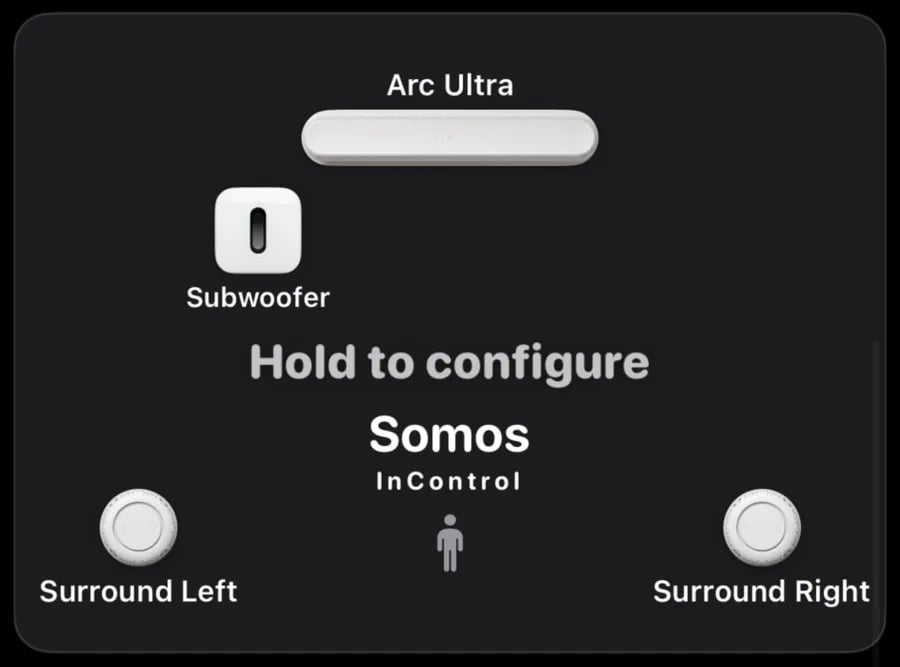
The room diagram shows the soundbar, Sub and surround speakers. Press and hold it to open the setup page for that room.