Home Screen widget
The Somos InControl widget comes in small, medium and large sizes. It’s built from rows, and each row is one of eight types:- TV presets — a room’s three TV preset buttons, which apply the saved sound directly
- Music presets — the same for the room’s three music presets
- Volume + mute — the room name with −, Mute and + buttons
- Set volume — one button, Set to and a number, that sets the room to the volume you chose in the widget’s editor
- Favourite groups — your saved groups, one tap to rebuild each
- Rooms — three room buttons. Tap one to make it the widget’s room; it is lit with a thin white border, and each button says what its room is doing (on TV, playing or idle). The room you have picked is always one of the three.
- Now Playing — one wide button for the row’s room: the album art or the TV symbol, the song and artist (or TV), a volume ring and Play/Pause
- Sound — Night Sound, Speech Boost and Go to TV / Go to Music for the row’s room, the same one-tap switches as the watch face. A room without a TV shows one TV room only button that opens Somos.
1
Add the widget
Long-press the Home Screen, tap +, search for Somos InControl, choose a size and tap Add Widget.
2
Choose what each row shows
Long-press the widget and tap Edit Widget. For each row pick a Type and, for anything but favourite groups and Rooms, a Room. For a Set volume row, also choose the Volume number its button sets. The editor only asks about the rows the chosen size can hold.
3
Open the app once
Open Somos InControl at least once after installing so the widget has your rooms and presets — it refreshes every time you open the app.
The widget’s room
Each row’s Room list also offers Widget’s room. A row set to it follows the room you tap in the widget’s Rooms row, so one widget can drive whichever room you pick: put a Rooms row on top and set the rows under it to Widget’s room. Until you pick one, it uses the room you had open last in the app. Rows set to a room of their own, and widgets made before build 40.0.2, keep their room. Picking a room in the widget never changes the room the app has open. A small widget whose first row is Rooms, Now Playing or Sound shows one button: the widget’s room, the room’s now-playing button, or Night Sound.Preset buttons apply exactly what the preset captured, including volume if you ticked it. The active preset is the picked button, with a thin white border, so you can see which one is loaded. Mute shows a speaker while the room is playing and a slashed speaker reading Muted while it is muted.
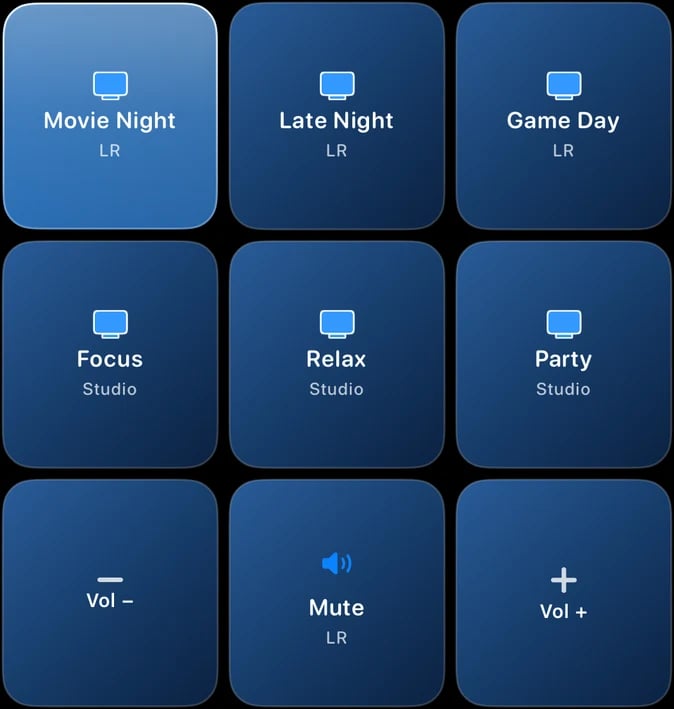
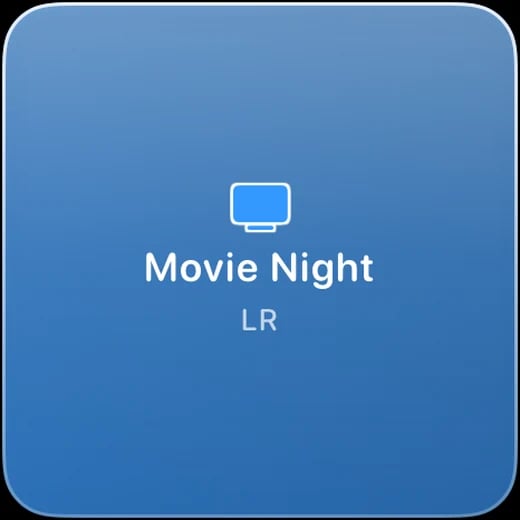
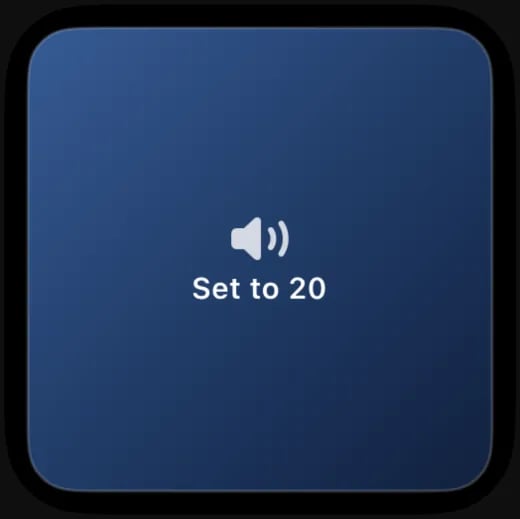
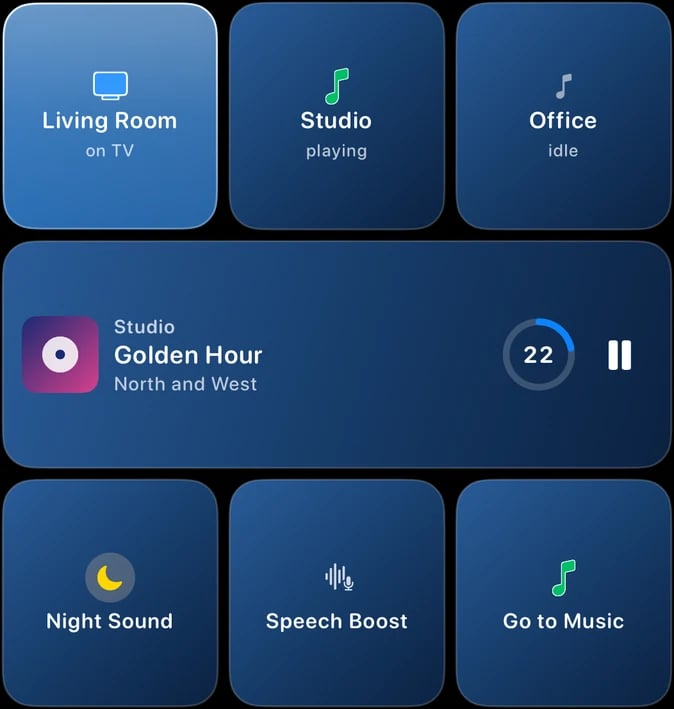
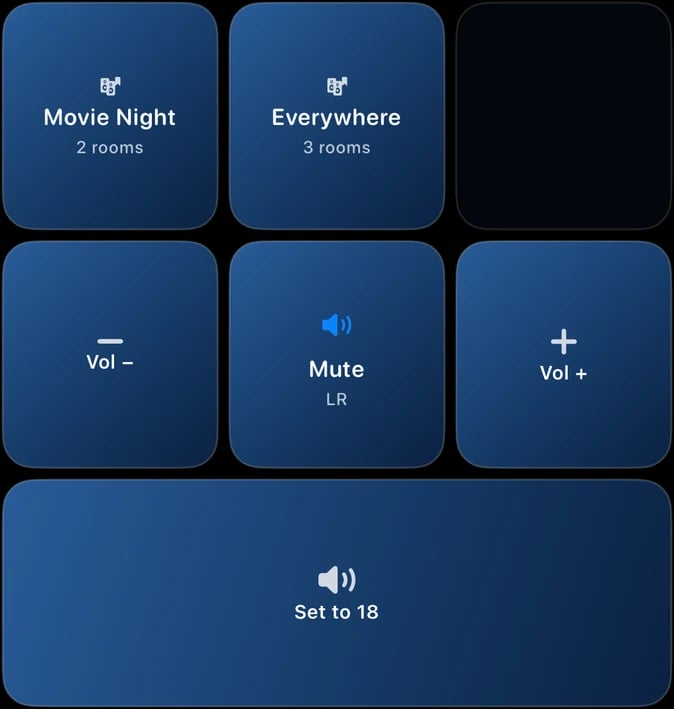
The widgets in build 40.0.2 (before the 40.0.5 dark navy and the picked button's white border): a large widget with TV preset rows (the loaded one in the picked glass) and a Volume and mute row; a small widget with one preset; a Set volume button that sets a room to one exact level; a large widget with the new Rooms, Now Playing and Sound rows; and a Favorite groups row with Mute on. Touch and hold a widget and choose Edit Widget to pick what each row does.
Siri and Shortcuts
The phrases below work as soon as the app is installed — nothing to set up in the Shortcuts app.
The same actions — Apply Preset, Volume Up, Volume Down, Switch Room — and a new one, Set Volume, are available in the Shortcuts app for automations and Home Screen shortcuts. Search for Somos InControl when adding an action. Set Volume sets a room to an exact volume number: pick the room and the number, and use it in an automation or on the Home Screen.