The Your Sonos page in the menu
Open the menu (top-left) and tap Your Sonos. The page shows:- One system — its name and generation (S1 or S2). Press and hold to rename it.
- Several systems — one row each with the room count; the active one is ticked. Tap another to switch — the room list and bottom tabs change to that system. Press and hold a row to rename it.
- Add a Home / New S1 or S2 System — give the system a name (optional, e.g. “Lake House”), make sure your phone is on that system’s Wi-Fi, and tap Scan for System. Once found, it appears in the switcher.
- Rescan My Network — looks again for systems that didn’t show up, for example after a router reboot, or when an S1 system was hiding an S2 one. You watch the scan happen.
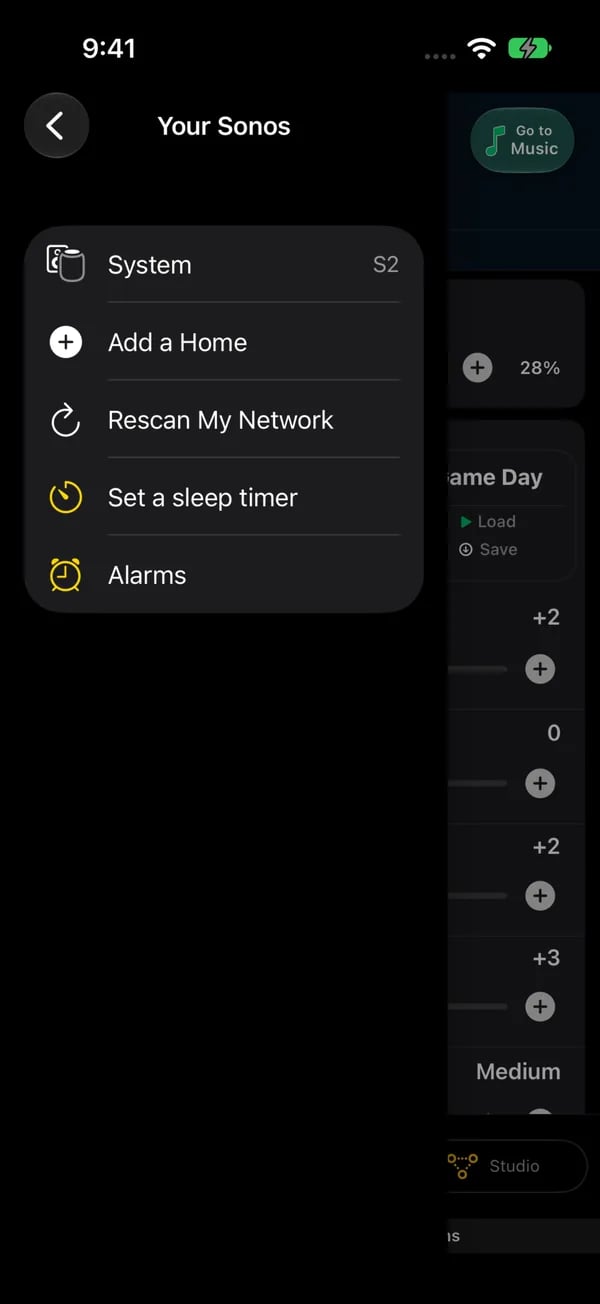
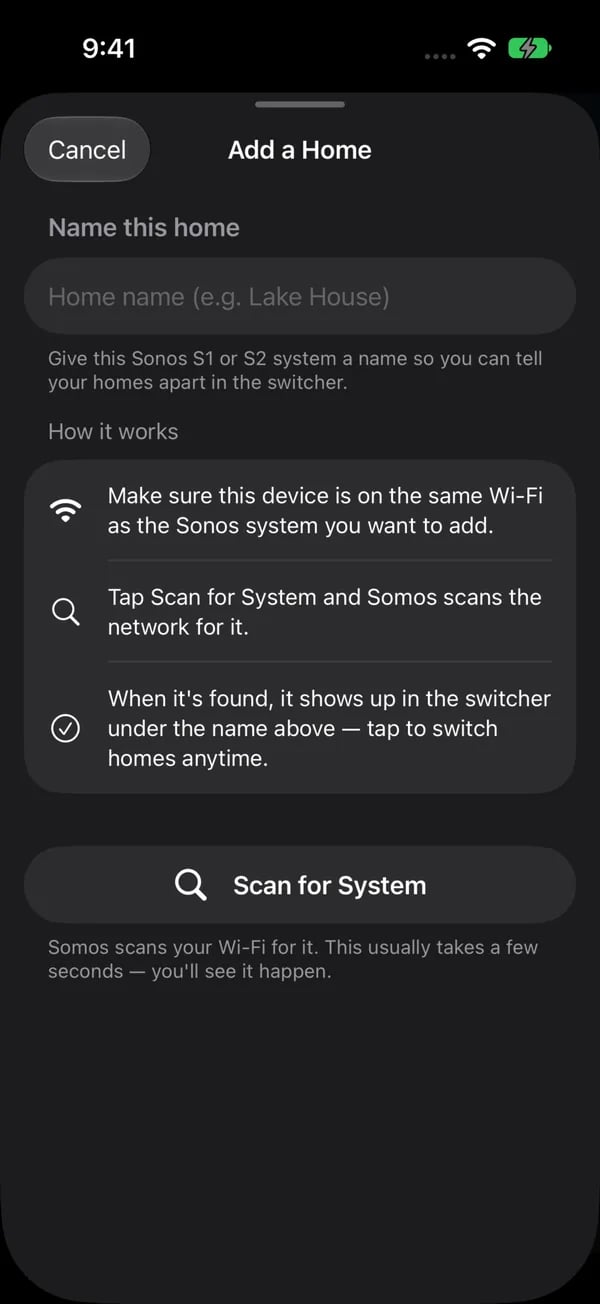
Left: Your Sonos has Rescan My Network, which looks again for the speakers on the network you are on. Right: Add a Home. Name the home, connect to that home's Wi-Fi, then tap Scan for System; the name tells your systems apart in the switcher.
Did we find everything?
If discovery finds two systems, or suspects one is missing, the app asks “Did we find everything?” once your rooms are on screen. Answer No, something’s missing to run a rescan. If a whole system never appears, check Help & Support → Settings Somos needs in the menu, then send Submit diagnostics (also in the menu) to the developer along with the Speakers Not Found questionnaire on the website.Every system is controlled over your local Wi-Fi. To control a second home you need to be on that home’s network — there is no remote access, by design.