Grouping and saved groups are part of Whole Home, the one-time purchase that covers every room beyond your free one.
Grouping and ungrouping
1
Open the room you want as the leader
Whatever this room is playing is what the group will play, and its presets become the group’s.
2
Tap the group button
It’s in the top-right of the room page. The Group Rooms sheet opens with Play in sync with the room’s name at the top, and every other room on the system below it with a switch. On a system with only one room there is nothing to group with, so the button isn’t shown.
3
Turn rooms on or off
Switch a room on to add it to this room’s group; switch it off to make it standalone again. Changes apply immediately. Tap Done when you’re finished.
Two rooms that share the same name can’t be told apart by Sonos® when grouping. If the sheet points this out, rename one of them first — press and hold the room name at the top of its page.
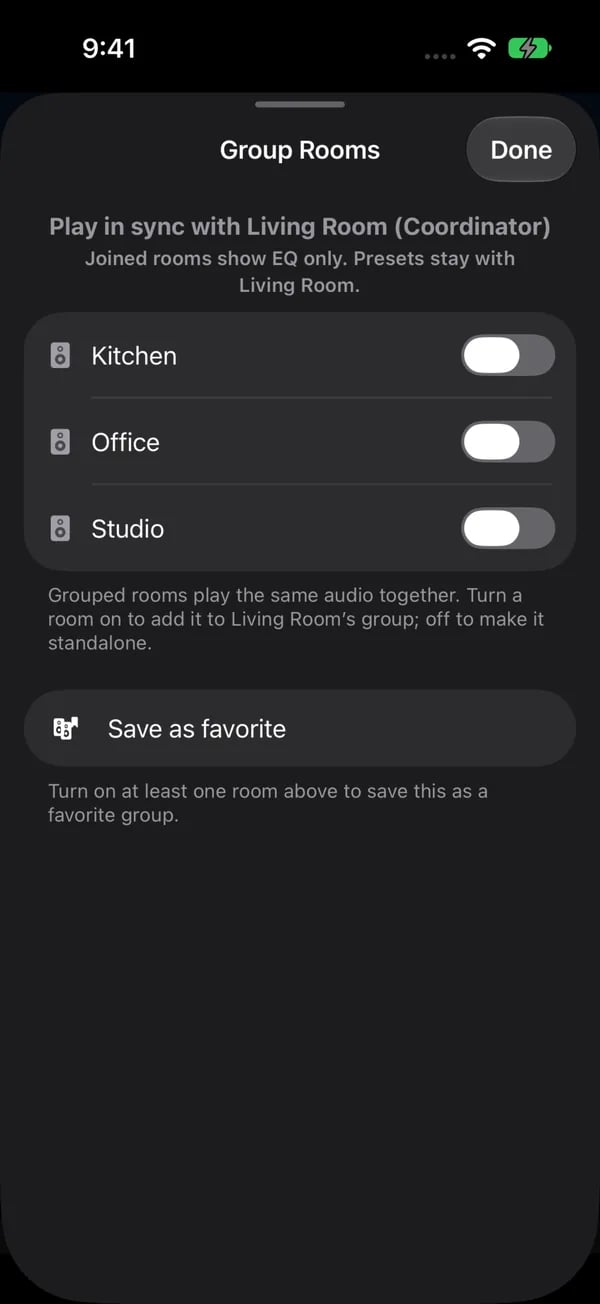
Group Rooms names the main room (the coordinator) and lists the rooms you can add. Turn a room on to join its playback, off to make it standalone. With at least one room on, Save as favorite keeps that combination for the bottom bar.
What a grouped room’s page shows
- Who it’s grouped with. A line names the room and the rest of the group, for example Office grouped with Era Right S. The group can be changed from any of its rooms.
- The Group slider. Every room in the group has one, under that line. It is the group’s own volume, the same one the Sonos® app shows: drag it and every room moves together, each keeping its place in the mix. The room’s own slider stays above it, so you can still balance one room against the others. Expand Room volumes under the Group slider to set each room in the group on its own.
- The leader’s presets. Every room in the group uses the leader’s presets. The room page has a heading such as Office presets; Music has three pills above the sound card, without a heading. Loading or saving one acts on the leader. See Sound Presets.
- On the music page too. The music page of a grouped room shows the same line and Group slider.
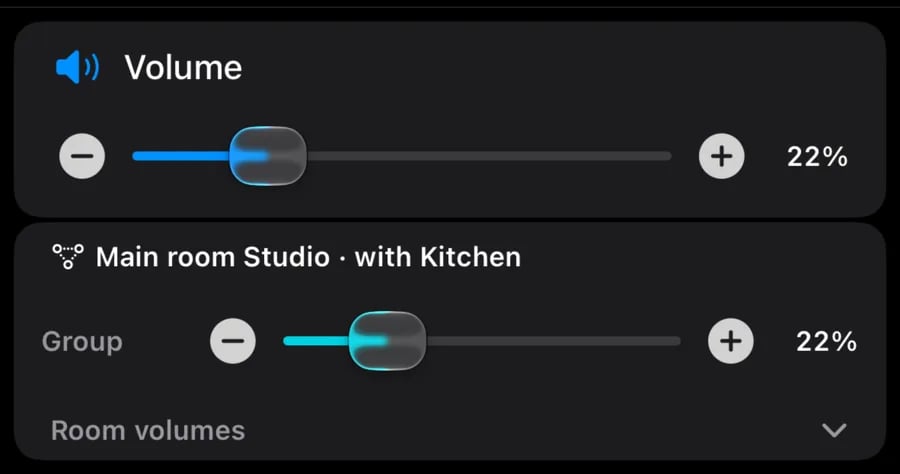
In a group, the blue slider is still this room's volume, the teal Group slider moves the rooms playing together, and the line above it names the main room and the others. Expand Room volumes to set each member on its own.
A music speaker grouped with a soundbar
When a speaker that can’t play TV on its own, such as an Era or a One, is in a group a soundbar leads, its page shows the soundbar’s TV input: the TV source row with the connection and audio format, and the TV and Music buttons. Those buttons act on the soundbar. A group of music speakers only still shows Music, as before.Group Audio Delay
When a soundbar is grouped with other rooms, a Group Audio Delay stepper appears in its EQ card. It steps the delay applied to the other rooms so their audio lines up with the bar instead of echoing — the same setting the Sonos® app keeps under System settings. It’s hidden on an ungrouped room because it has no effect there.Saving a group
- From the Group Rooms sheet — tap Save as favorite at the bottom. The saved group is named after its rooms, for example Office + Kitchen; only a very long name is shortened to the leader and how many rooms join it, such as Office +2.
- From the bottom bar — hold a room tab (or a wheel row) and tap Group with… to build a group. Hold a live group’s tab and tap Ungroup to split it or Save as favorite to keep it. This is offered only when that exact group isn’t saved yet.