Adjusting the volume
Drag the slider (0–100) or tap the − and + buttons at either end. The change goes straight to the speaker over your local Wi-Fi as you drag — you’ll hear the room respond in real time. The card stays pinned at the top as you scroll down the page, collapsing to a slim bar that shows a percentage bubble while you drag. Changes made elsewhere — the official Sonos® app, your TV remote — show up in the slider within a couple of seconds.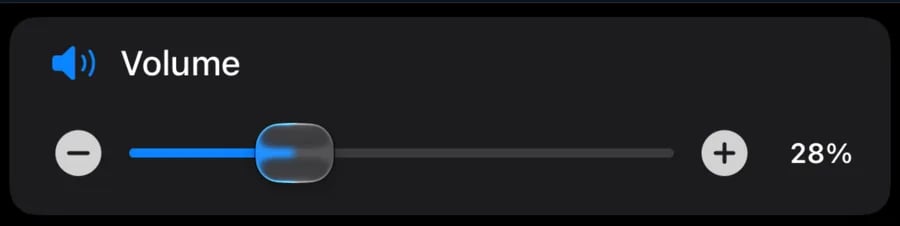
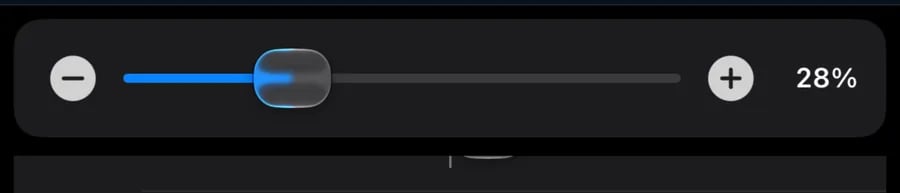
Top: the room's volume card. Drag the blue slider for a big change, tap minus or plus for a small one, or tap the speaker icon to mute. Bottom: scroll down the room page and the volume shrinks to a compact bar near the top, so you can keep adjusting without scrolling back.
Muting a room
Tap the speaker icon on the left of the volume card. The icon changes to a slashed speaker and the room mutes; tap it again and the volume returns to the level it was at. Sliding the volume all the way to 0 also mutes the speaker (this is what the official Sonos® app does — your speaker’s status light turns green while muted), and sliding back up restores sound.Pinch for volume (off by default)
Menu → App → Somos settings → Pinch for volume. With it on, two fingers anywhere on a room page or the music page change that room’s volume — spread them apart to turn it up, pinch them together to turn it down — and a Volume N% pill floats at the top while you pinch. The slider still works exactly as before; this is an extra, and it stays off until you switch it on. See Gestures.Volume from the Apple Watch
Open a room in the Watch app and turn the Digital Crown; the number and the volume line follow. The Crown is the volume while the line has its green box; if you have scrolled the screen with a finger, tap the line to bring the box back. The speaker button beside it mutes the room, and shows a slashed speaker until you tap it again to unmute.Volume when rooms are grouped
When a room is grouped with others, every room in the group shows a Group slider under its own, on the room page and the music page. It is the group’s own volume, the same one the Sonos® app shows: drag it from any of the rooms and every speaker in the group moves together, each keeping its place in the mix. Each room keeps its own slider too, so you can still balance them individually. A room joining a group never comes in louder than the room leading it. On the Apple Watch, a grouped room’s Crown turns the group’s volume. The Group knob follows your finger from the level shown. If the first move after unmuting is refused with error 801, Somos retries it once. If that retry is refused, the knob shows the speaker’s actual volume. Changing the group cancels waiting moves for the old group. Let the new group settle, then drag again. See Grouping Rooms.With a soundbar in the group, your TV remote changes only the soundbar’s volume, not the other rooms’.
Max volume limit — removed
The per-room max volume ceiling was removed from the app. If you remember holding a row in the EQ card to cap a room, that control is gone.Related features
- Enable Live Activity to put − / + volume buttons on your Lock Screen and in the Dynamic Island.
- Add the Home Screen widget for volume buttons and presets without opening the app, or ask Siri to “turn up the volume on Somos InControl”.