See your alarms
Open the menu and tap Alarms. Each row shows the time, the room and the days it repeats. Pull down to read the list again. With no alarms, the page says No alarms yet and offers Add an alarm.The Alarms row is not shown in Demo Mode, where no speaker can keep an alarm.
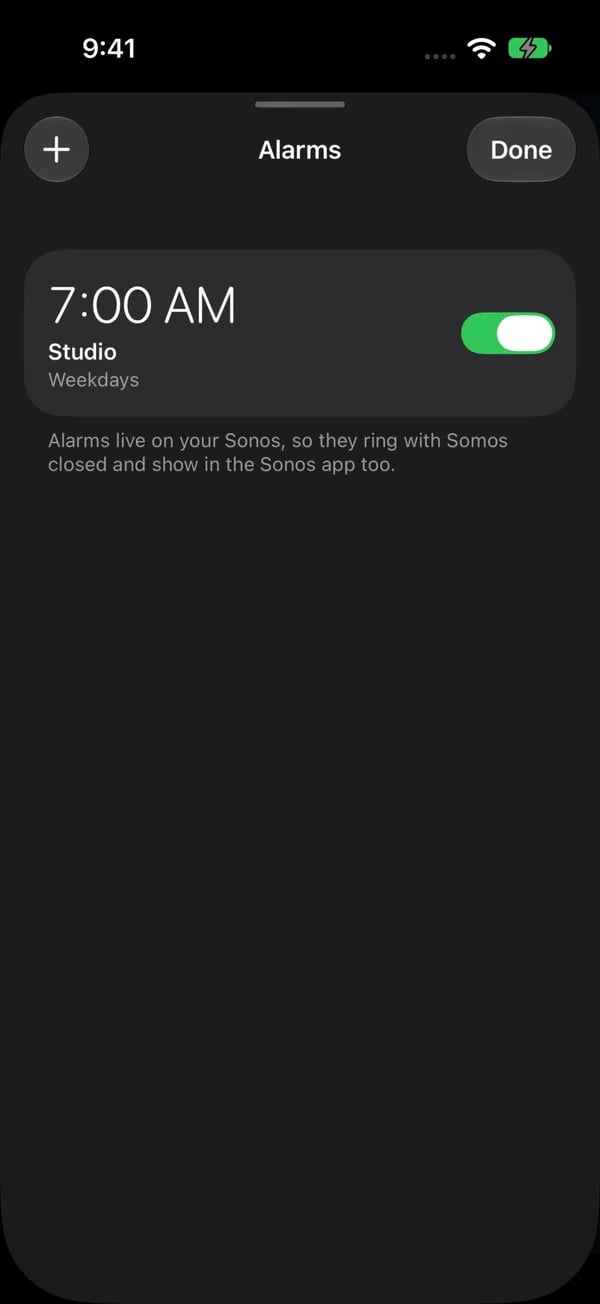
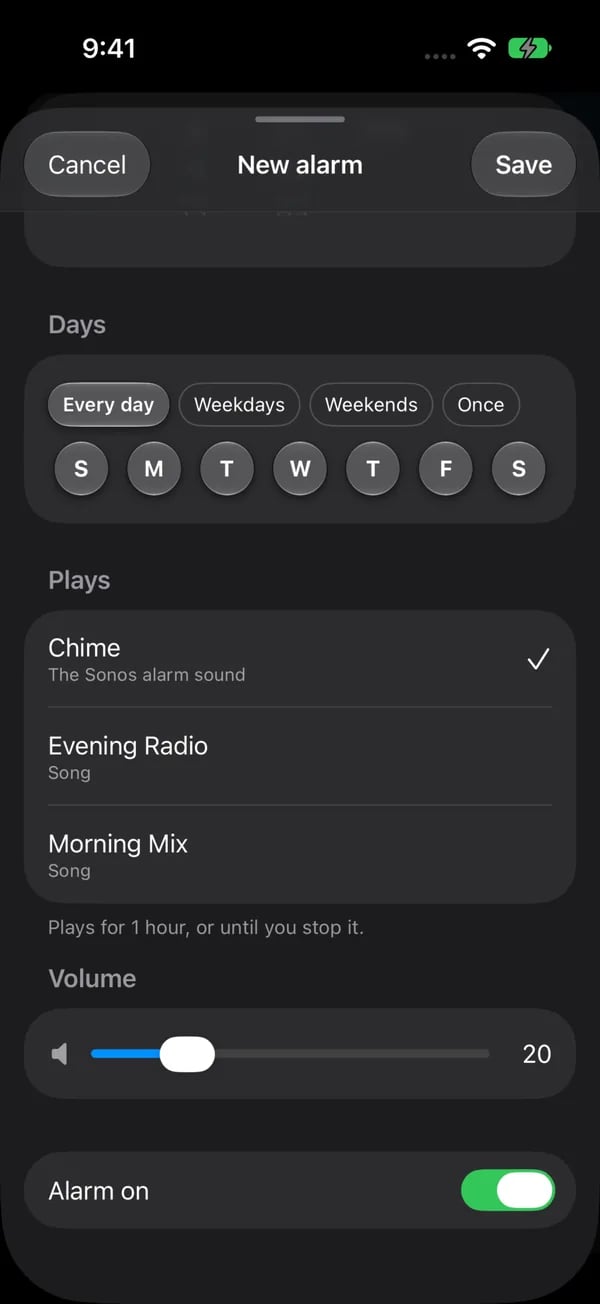
Left: Alarms lists each alarm with its room and days; the switch turns it on or off. Right: the alarm editor, with the days, what it plays (the Sonos chime or a favorite), its own volume and Alarm on. Alarms live on your Sonos, so they ring with Somos closed.
Add or edit an alarm
1
Tap the plus, or tap an alarm
The + at the top adds a new alarm. Tapping a row edits it.
2
Choose the room, time and days
Room is the room the alarm plays in. It plays in that room only, never in grouped rooms. Set the Time on the wheel and tick the Days it repeats.
3
Choose what plays
Plays is the chime, or one of your Sonos® Favorites. An alarm plays for 1 hour, or until you stop it.
4
Set the volume and save
Set the Volume, keep Alarm on switched on, and tap Save.
An alarm marked Made in the Sonos app · on / off only can be switched on or off here, but not edited or deleted. Change it in the Sonos® app.