Hold menus
Anything on the bar that can do more than one thing has a hold menu: press and hold it and a short menu of choices opens. It works the same everywhere: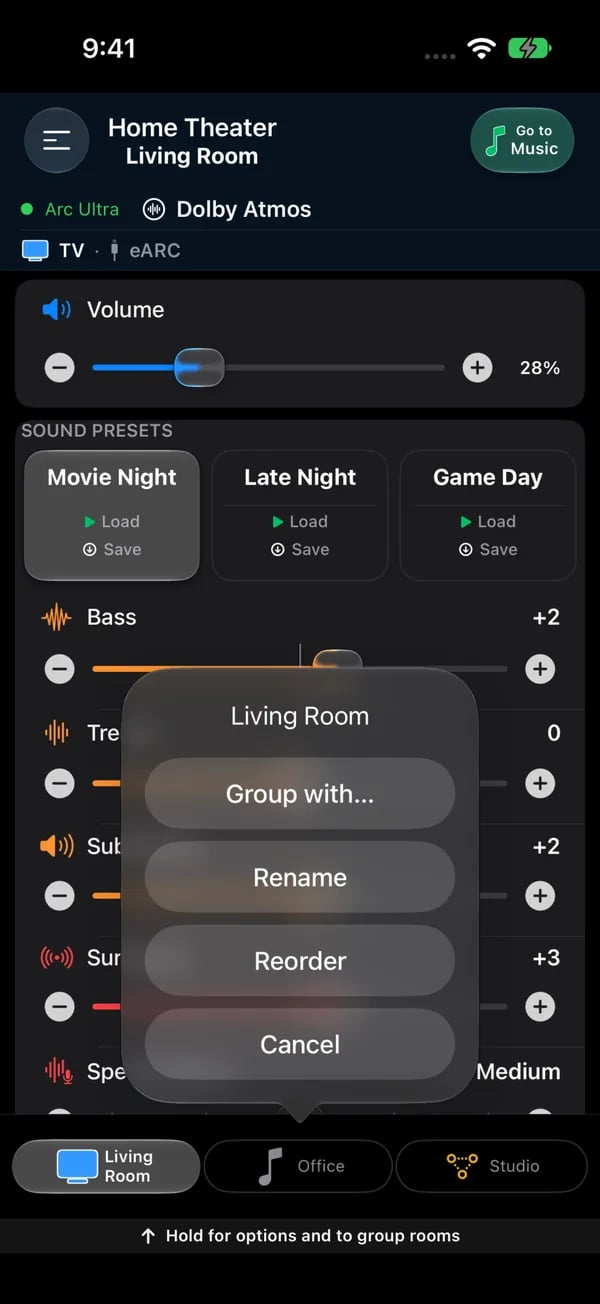
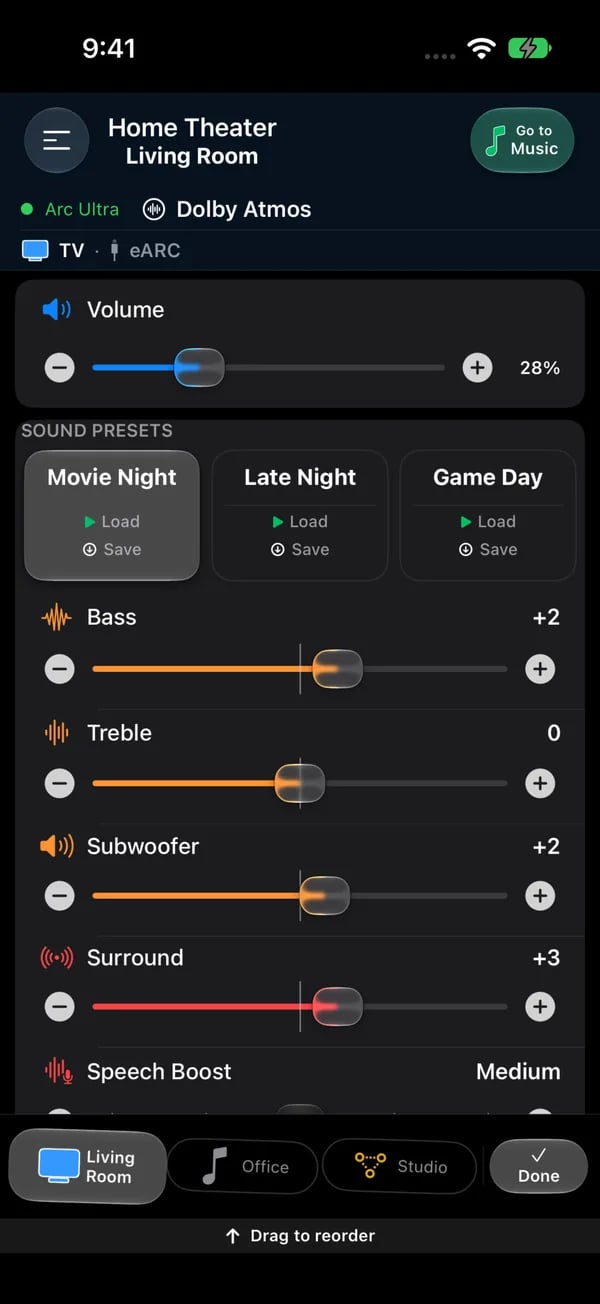
Left: press and hold a room tab for Group with..., Rename and Reorder. Right: Reorder lets you drag the tabs into the order you want; tap Done when the bar is right.
Room tabs
The bottom bar shows your rooms as tabs, in your room order. Each tab is as wide as its room’s name, and the tabs spread across the whole bar. If they don’t all fit, the row scrolls to keep the room you’re on in view. Swipe the tabs left or right to go to the next or previous room. It keeps going round, like the wheel: past the last room you’re back at the first. Room symbols. Each tab shows what the room is: a TV symbol for a soundbar room, a note for a speaker-only room, and both for a live group. The symbol is lit while the room plays and gray when it is idle. A live group is one tab, not one tab per room. A small Hold to reorder or rename hint sits under the tabs whenever there are two or more rooms. Hold a tab to open its menu:- Reorder — the tabs wiggle and the hint reads Drag to reorder. Drag a tab left or right and let go. Tap Done at the end of the bar when you’re finished.
- Rename — opens Rename Room with the room’s name, up to 20 characters. Renaming changes the room’s name in the Sonos® system, so the official app sees it too.
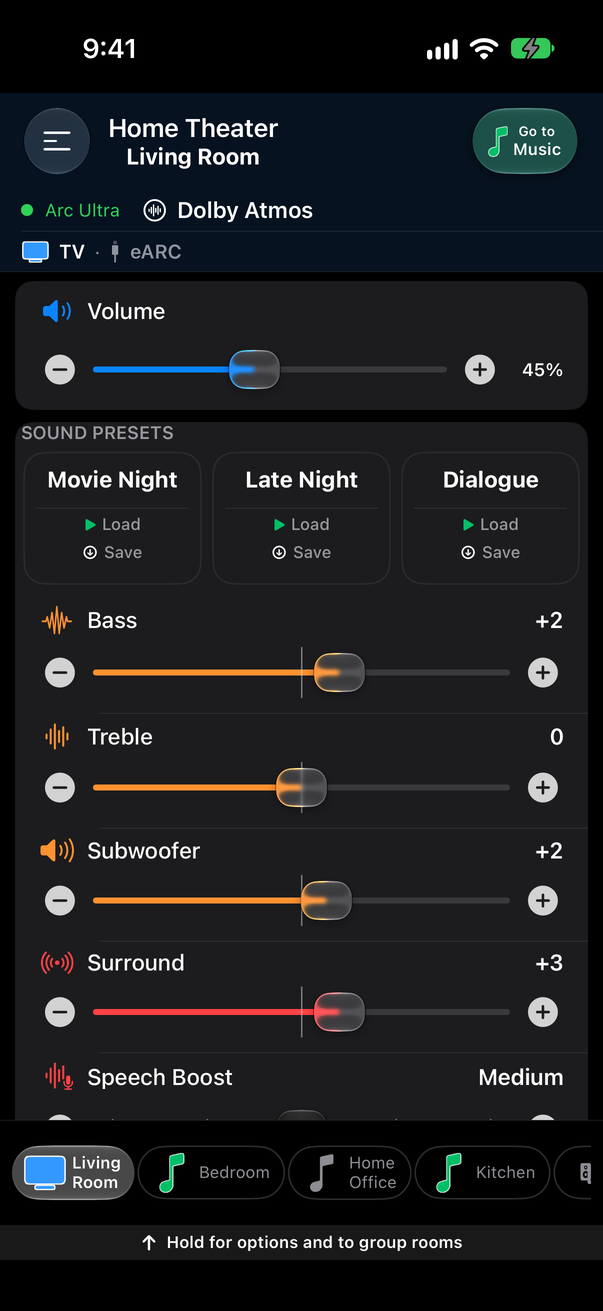
The hint under the room tabs.
The room wheel
Prefer to spin rather than tap? Open the menu, then App → Somos settings, and switch on Room wheel. It is off by default. The tabs on the bottom bar become a wheel that holds every room, in your menu order. Spin it to pick a room. The rooms above and below the selection show faded, like the iPhone’s own pickers. Hold a row for the same menu as a tab. Hold the room in the middle of the wheel and tap Rename to rename it. To reorder, switch the wheel off and hold a tab. Grouped rooms and stereo pairs show the same small marks on the wheel as on the tabs. The wheel sits in a slim bar, so more of the room page stays on screen. Switch Room wheel off to get the tabs back. Your room order is the same either way.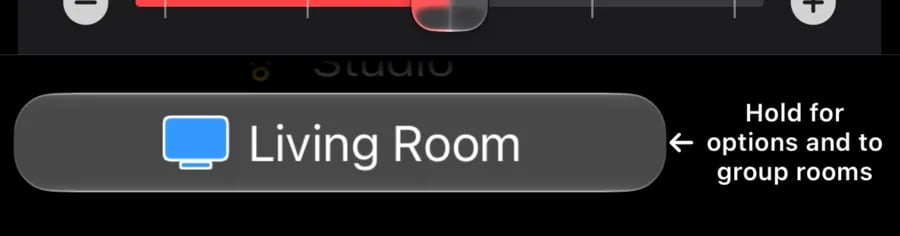
With Room wheel on in Somos settings, the wheel replaces the tabs: spin it to choose a room, and hold for the room's options.
Saved groups (next to your rooms)
A saved group is a combination of rooms you’ve grouped together and saved — “Downstairs”, “Whole House”. It sits next to your rooms as a bookmark tab: gray when idle, gold while it plays. A saved group shows its full name, like Office + Kitchen, when there is room.- Save one — group the rooms you want (see Grouping Rooms), then tap Save as favorite at the bottom of the Group Rooms sheet. Or hold the live group’s tab (or its row on the wheel) and tap Save as favorite.
- Recall one — tap its tab, or spin the wheel to it. On the wheel, the group is built about a second after the wheel comes to rest, so you can spin past groups without each one assembling. The app rebuilds that group on your speakers: it joins the rooms, and a spinner runs over the bar for a few seconds while the speakers settle. If rooms that aren’t part of the saved group are already grouped with it, the app asks whether to keep or drop them rather than guessing.
- Rename one — hold it and tap Rename.
- Ungroup — hold it and tap Ungroup to split the speakers back into separate rooms. The save stays, so one tap rebuilds the group later.
- Delete one — hold it and tap Remove favorite. You can also open Group Rooms on that group and tap Remove from favorites.
Switching rooms
- Bottom tabs — tap a room tab to jump straight there, swipe the tabs left or right for the next or previous room, or swipe left and right across the room pages.
- Room wheel — with the wheel switched on, spin it to any room. See The room wheel.
- Menu — tap the menu button, then See all under Rooms, then any room in the list. This reaches every room.