Favorites
Tap the heart on any song, album, playlist or station from a music service and it is saved to your Favorites. Tap the heart again to let it go. The heart is not offered on things that cannot be played on their own, such as a category or an artist.The Favorites page
The Favorites button sits with Playlists in a fixed row above the music services on the music page — the services scroll in their own row underneath, these two stay put. Tap it and the music page slides down to its handle, and the Favorites page opens where a service’s page would:- What is playing, at the top. The first row shows the art, the song, the artist and the room — Now playing · Bedroom, Paused · Bedroom, or Last played for what the room had on before. A long title scrolls so you can read all of it. When nothing is on, the row says Nothing playing in that room.
- Favorites from our services — everything you hearted, newest first, with its art, where it came from and what kind of thing it is.
- Tap one to play it. It plays on the room, the service it came from lights up in the row, and the player comes back up. A radio station shows the station’s name and what is on right now, the way the station reports it.
- Play all — the button beside the Favorites from our services heading. It empties the room’s queue, adds every hearted song in the order you see on the page, and starts the first one. Stations, albums and playlists cannot go in a queue, so they are skipped, and the message says how many: Playing 4 of 6 favorites in Bedroom · 2 skipped. Shuffle is turned off so the order is the page’s order.
- Swipe left to remove it.
- A song row has its own plus, so you can queue a favorite instead of playing it.
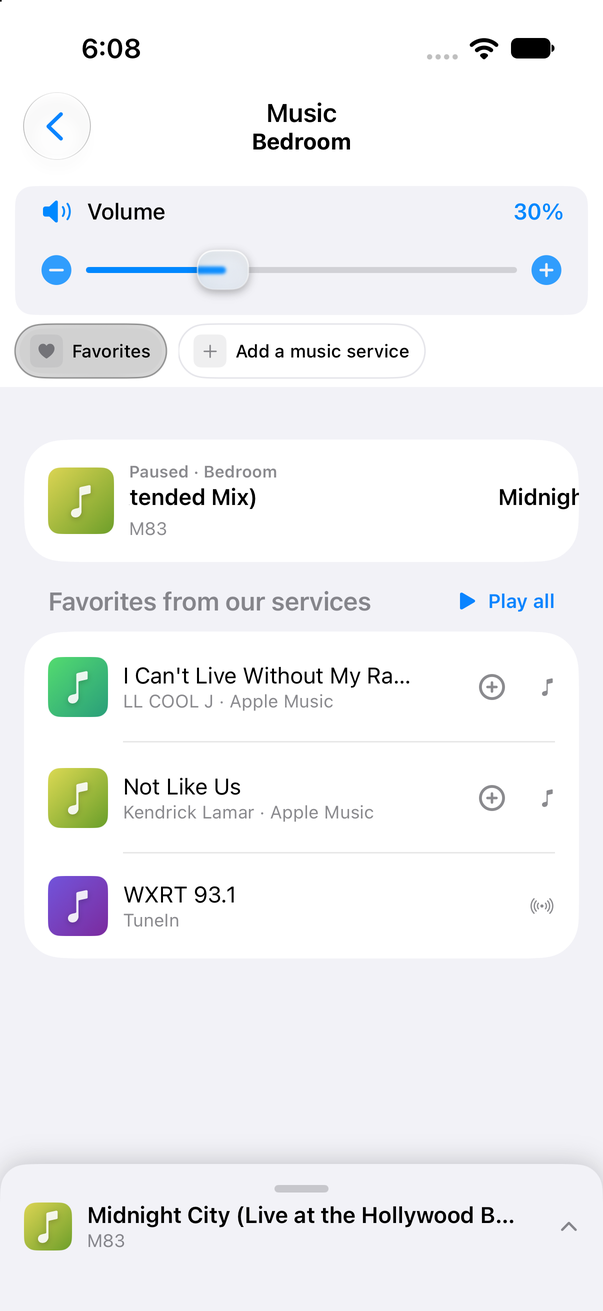
The Favorites page: what is playing at the top, then Play all beside the heading and the hearted songs, each with its plus.
Favorites you saved in the Sonos® app are a different list. They are not shown on the Favorites page or the music page, though the Apple Watch app can still play them.
Add to queue
The plus adds a song to the end of the queue without changing what is playing — a short Added to the queue toast, a tap of haptic, and the queue grows. You will find it:- on every song row or tile while browsing or searching a service (albums, playlists and stations open or play instead — they are not queued from here),
- on a song on the Favorites page,
- on the player, right after the heart — when what is playing is a song. Here the plus opens Add to playlist (see below); Add to queue is its first row. While a radio station or a stream is playing, the player shows the heart alone: a station has no end, so it cannot be queued.
Add the playing song to a playlist
Tap the plus beside the heart on the player while a song is playing. The Add to playlist sheet opens:- Add to queue — adds the song to the end of the queue, as the plus always did.
- New playlist — name a new Somos playlist, and the song goes straight into it.
- Your playlists — newest first, each with how many songs it holds. Tap one to add the song to it.