Somos InControl requires Local Network permission to find your Sonos® speakers. Without it, the app has nothing to control. See App Permissions for what each permission does and how to re-enable it if you declined.
On an Android phone? Somos InControl for Android 0.9 is in a closed test on Google Play. See First Launch on Android.
What setup asks of you
Somos talks to your speakers over your home Wi-Fi and nothing else. Setup is one page per thing: Get started, then Allow Somos to find your speakers (the Local Network prompt), then Let Somos see nearby speakers (the Bluetooth prompt), then Find My Speakers. There is no checklist to read first. If Somos can’t find your speakers, it shows you what to check — see If Somos can’t find your speakers below.Bluetooth is optional — Somos works over Wi-Fi alone. It only helps spot a speaker that is on but not on your Wi-Fi yet.
Download and set up
1
Install TestFlight
Somos InControl is in public beta and distributed through Apple’s TestFlight platform. If you don’t have it already, download TestFlight from the App Store on your iPhone or iPad.
2
Join the beta
Open this link on your device: testflight.apple.com/join/2D778AXHTap Accept on the TestFlight page, then tap Install to download Somos InControl. TestFlight will notify you when updates are available. The Apple Watch app installs alongside it — see Apple Watch.
3
Get started
Open the app. The first page is the name and a line about what it does. Tap Get started. If you just want to look around without any Sonos® hardware, tap Explore Demo Mode instead — three demo rooms appear, and an Exit Demo button at the top of each page takes you back.
4
Allow Somos to find your speakers
The next page is Allow Somos to find your speakers. Tap Continue and iOS asks whether to allow the app to find and connect to devices on your local network. Tap Allow.This lets the app discover and control your Sonos® speakers over Wi-Fi. It does not give the app access to any device outside your home network. If you tap Don’t Allow by mistake, the app shows you how to re-enable it, with a Try Again button.
5
Let Somos see nearby speakers (optional)
Tap Continue and iOS asks for Bluetooth. This is used only to spot Sonos® speakers that are nearby but not yet on your Wi-Fi — a new speaker you’re about to set up. Tap Allow for that, or Don’t Allow to skip it. The app works fully without it for any speaker already on your network.
6
Find My Speakers
The last page says Somos will now look for your Sonos® speakers on this Wi-Fi. Tap Find My Speakers. The app searches your subnet and listens for Bonjour at the same time; on most home networks this takes a few seconds. Every Sonos® room appears — soundbar rooms, stereo pairs, single and portable speakers — and the first one opens.
7
That's it
Your first room is open. There is no tour to click through — you can replay the intro from Menu → Help & Support → Watch the intro, or from App → Somos settings. Choose Read intro for the written guide. You can still skip the first-launch film.
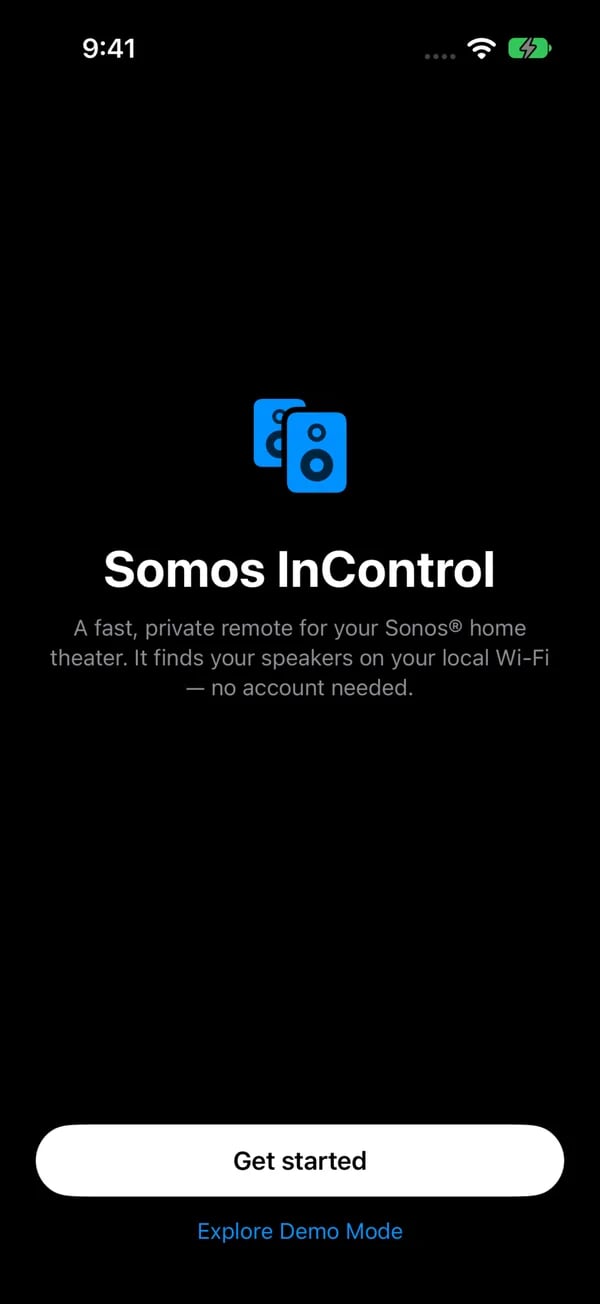
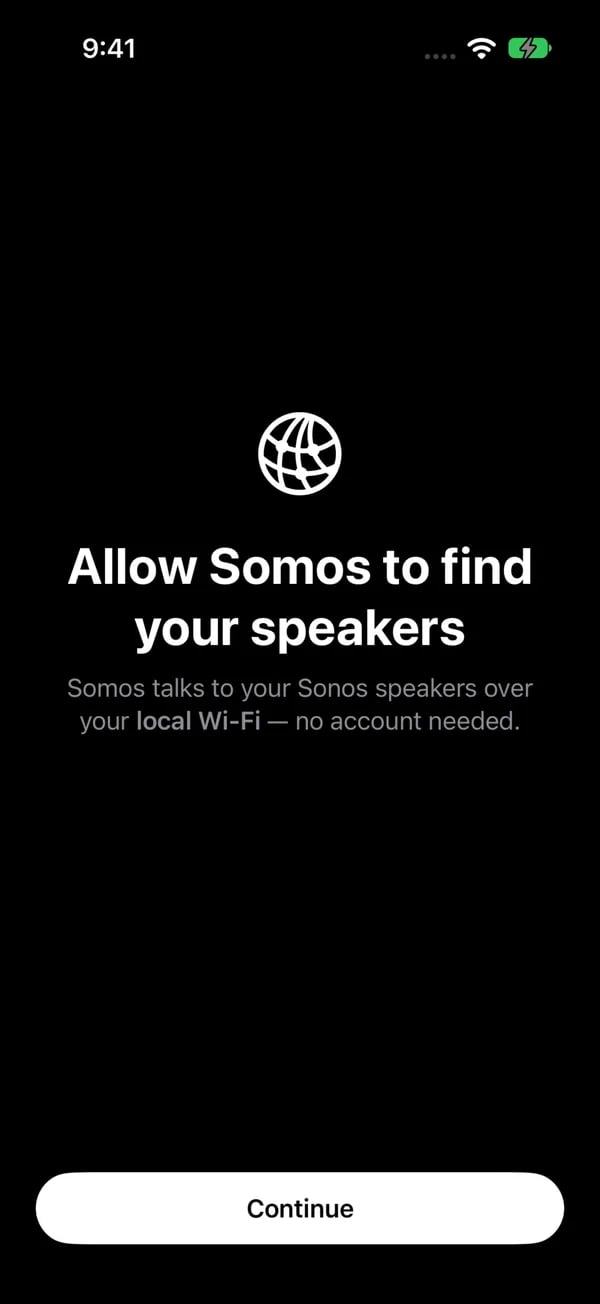
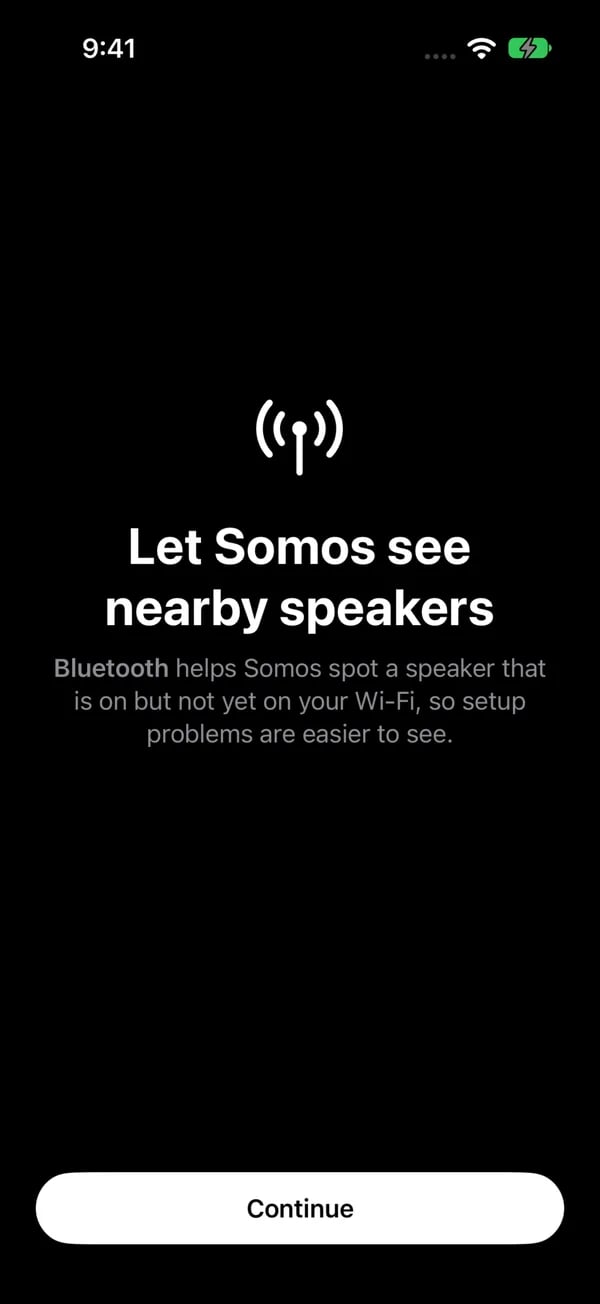
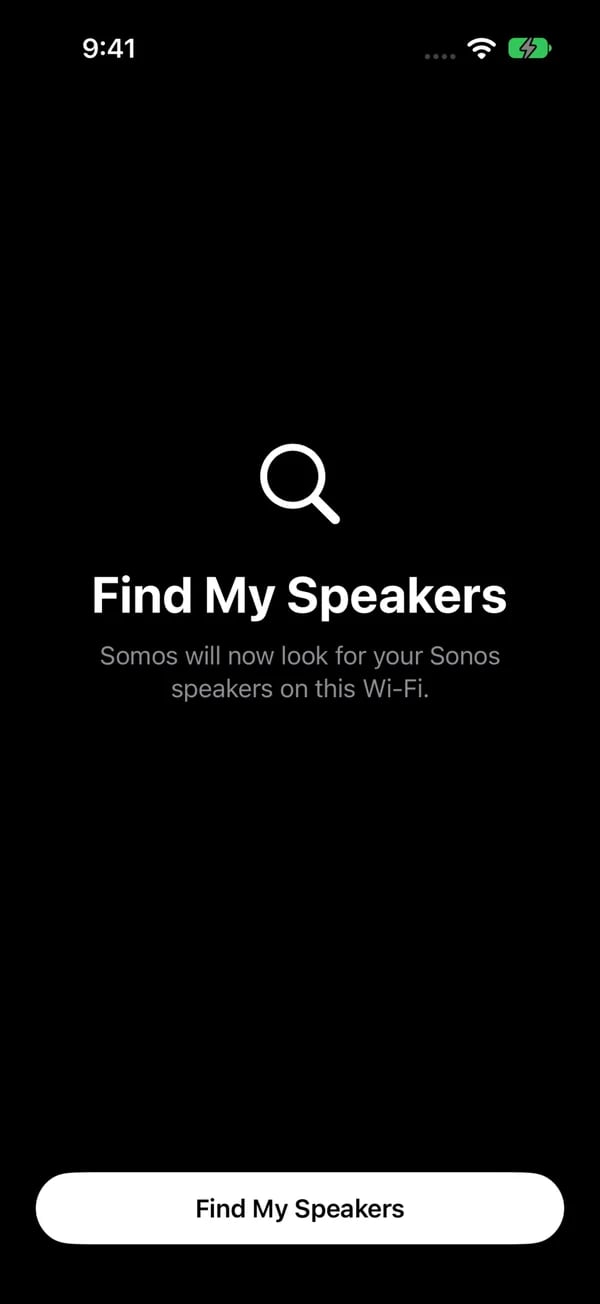
First launch on iPhone, left to right: Get started (or Explore Demo Mode), Allow Somos to find your speakers (Local Network), Let Somos see nearby speakers (Bluetooth), and Find My Speakers.
If Somos can’t find your speakers
If the search finds nothing, you land on a No speakers found screen. Under If Somos can’t find your speakers, check: it lists the four things that have to be true outside Somos:- UPnP on in the Sonos® app. Sonos app › Account › Privacy & Security › UPnP › on.
- VPN allows your home network. If the Sonos app works with your VPN on, Somos will too.
- Phone on the same Wi-Fi as the speakers. Not cellular.
- Not a guest or IoT network. Those keep devices from seeing each other.
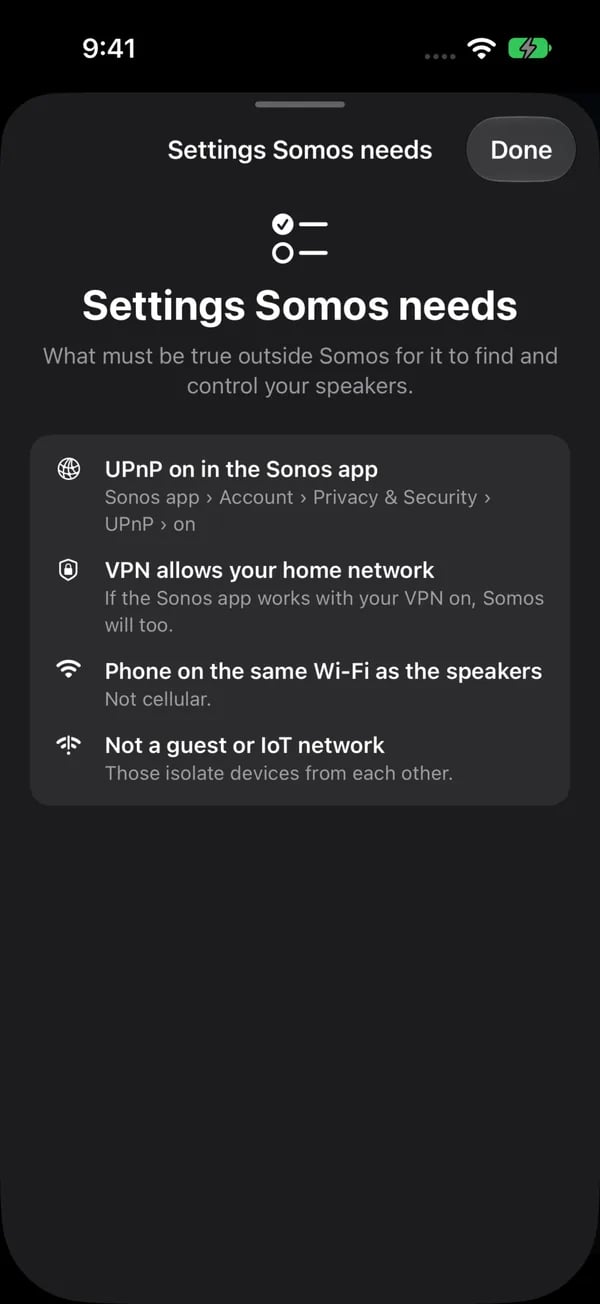
Settings Somos needs (Menu, Help & Support) puts the connection checklist in one place: UPnP on in the Sonos app, a VPN that allows your home network, the phone on the same Wi-Fi as the speakers, and not a guest or IoT network.
Help after setup
Open the menu (top-left) and tap Help & Support. It opens a page with Settings Somos needs (the four checks above), Getting Started and Feature Reference (both open this manual), and Visit our website for more support options. The ready-made Somos watch face is under App → Apple Watch. See The Menu.What gets discovered
Every Sonos® room on your Wi-Fi appears automatically — you don’t choose rooms manually. What you can control depends on what’s in each room:All rooms
Volume, mute, bass, treble, loudness, presets, Trueplay, Status Light, Touch Controls, the music page with your music services, grouping and rename.
Soundbar rooms
Everything above, plus TV / Music source, the audio-format badge, Night Sound, Speech Boost, height, surround and home theater setup.
Rooms with a subwoofer
Any room with a bonded Sub — soundbar or not — adds the subwoofer level, on/off, and the crossover wherever the speaker reports one.
Your rooms on the bottom bar
The bottom bar holds your rooms as tabs (swipe them to change room), plus a second page of saved groups. Hold a tab to reorder or rename it.